Inventory Management
View stock levels for products and monitor reorder points to keep your inventory organized
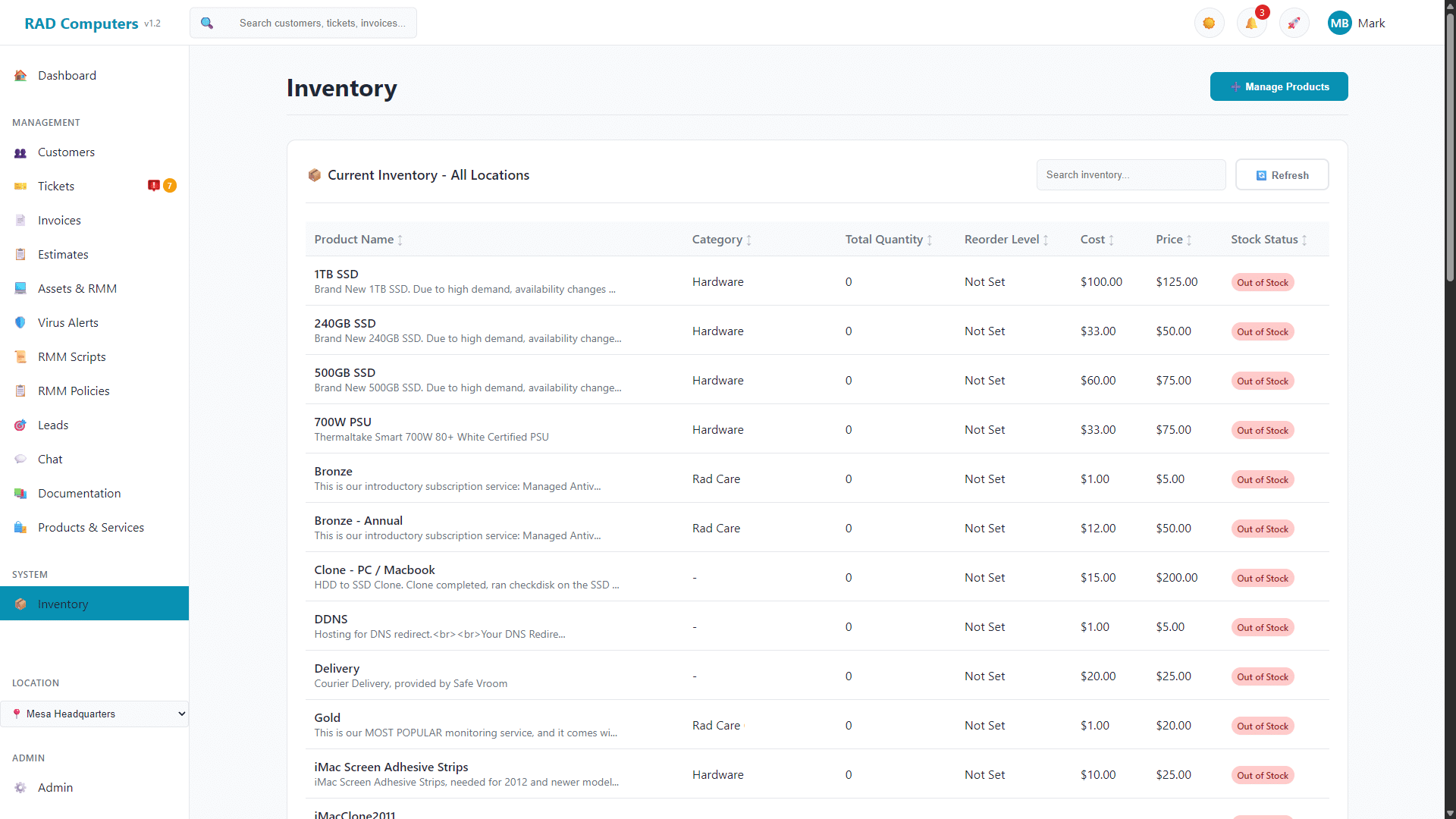
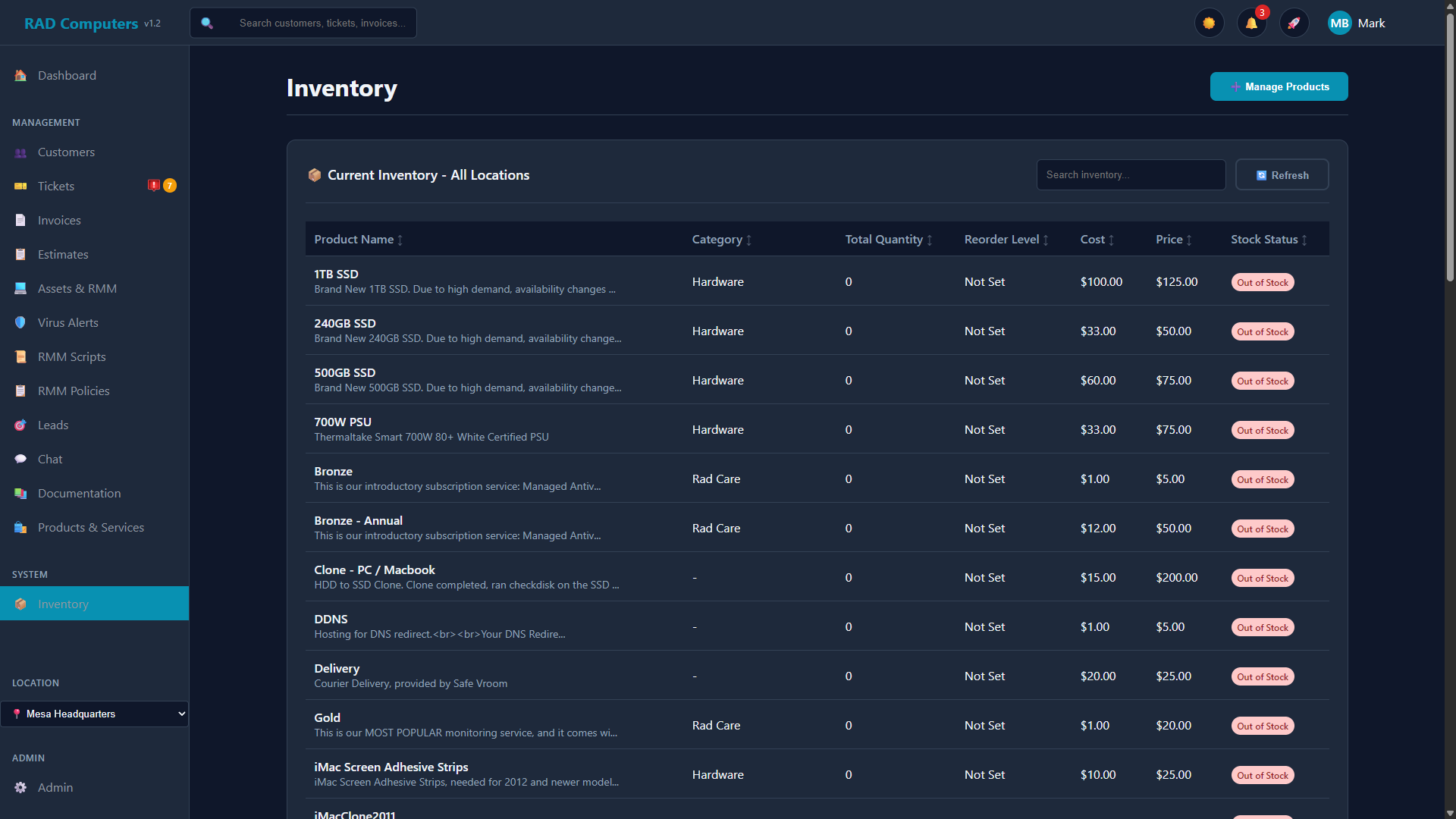
The Inventory page showing products with stock quantities and status indicators
Overview
RAD Repairs provides inventory tracking to help you monitor parts, products, and supplies. The inventory page displays all items marked as products, plus any item with stock tracking ("Maintain Stock") enabled, showing current quantities and stock status indicators.

Stock Tracking
View current stock levels for products with the "Maintain Stock" option enabled.

Low Stock Indicators
Visual indicators show when items are at or below their reorder point.

Search & Sort
Quickly find products by name, category, or description with sortable columns.

Product Details
Double-click any row to view detailed product information and inventory by location.
Inventory List View
The inventory page provides a table view of all products that have stock tracking enabled. You can search, sort, and paginate through your inventory items.
Inventory Table Columns
| Column | Description | Notes |
|---|---|---|
| Product Name | Product name with description shown below | Click column header to sort |
| Category | Product category if assigned | Click column header to sort |
| Total Quantity | Current stock level | Click column header to sort |
| Reorder Level | Quantity threshold for low stock warning | Shows "Not Set" if not configured |
| Cost | Product cost per unit | Click column header to sort |
| Price | Selling price per unit | Click column header to sort |
| Stock Status | Visual indicator of stock health | In Stock (green), Low Stock (yellow), Out of Stock (red) |
Double-click any row in the inventory table to open a modal showing the product name, price, and inventory quantities by location.
Stock Levels and Quantities
Products can have inventory tracking enabled via the "Maintain Stock" checkbox in Products & Services. When enabled, the system tracks current quantity, cost, and reorder level for each product.
Product Inventory Fields
| Field | Description | Where to Set |
|---|---|---|
| SKU/Barcode | Unique stock keeping unit or barcode identifier | Products & Services page |
| Quantity | Current stock quantity on hand | Products & Services page (when Maintain Stock is checked) |
| Reorder At | Threshold that triggers low stock warning | Products & Services page (when Maintain Stock is checked) |
| Desired Stock Level | Target stock quantity to maintain | Products & Services page (when Maintain Stock is checked) |
| Cost | Cost per unit for the product | Products & Services page |
| Price | Selling price per unit | Products & Services page |
Stock Status Indicators
| Status | Indicator | Meaning |
|---|---|---|
| In Stock | Green | Quantity is above the reorder point |
| Low Stock | Yellow/Orange | Quantity is at or below the reorder point |
| Out of Stock | Red | Quantity is zero |
Low Stock Indicators and Reorder Points
Set reorder points for your products to see visual low stock warnings in the inventory list. When stock falls at or below the reorder point, items display a yellow "Low Stock" indicator.
Setting Up Reorder Points
Go to Products & Services from the sidebar menu.
Click on a product to open the edit form.
Check the Maintain Stock checkbox to enable inventory tracking for this product.
Enter a value in the Reorder At field. When quantity falls to this level or below, the product will show as "Low Stock" in the inventory list.
When setting reorder points, factor in supplier lead times. If a part takes 2 weeks to arrive and you use 5 per week, set your reorder point to at least 10 units plus a safety buffer.
Stock Status Behavior
| Condition | Status Shown | Color |
|---|---|---|
| Quantity = 0 | Out of Stock | Red |
| Quantity <= Reorder At (and Reorder At > 0) | Low Stock | Yellow/Orange |
| Quantity > Reorder At (or no reorder point set) | In Stock | Green |
Updating Stock Quantities
Stock quantities are managed through the Products & Services page. To adjust inventory levels, edit the product and update the quantity field.
How to Update Stock
Click on Products & Services in the sidebar, or use the Manage Products button on the Inventory page.
Use the search box or scroll through the product list to find the item you want to update.
Click on the product row to open the edit form. Make sure Maintain Stock is checked.
Enter the new quantity value in the Quantity field and save the product.
For bulk inventory updates or imports, consider using the Syncro integration if available, which can sync product quantities between systems.
Multi-Location Inventory
If you operate multiple shops or locations, you can assign products to specific locations and view inventory by location in the product details modal.
Setting Up Locations
Go to Admin Settings > Locations and add each physical location. Provide a name and address.
When editing a product in Products & Services, you can select a location for that product's inventory.
Viewing Location Inventory
Double-click any product row in the Inventory page to open the product details modal. This shows the inventory breakdown by location.
The inventory list shows total quantities across all locations. To see how stock is split between locations, double-click a product to open its details.
Enabling Inventory Tracking for Products
Inventory tracking is integrated with the Products & Services catalog. Items appear in the Inventory page when they are marked as a "product" type or have the "Maintain Stock" option enabled. Enabling Maintain Stock unlocks the quantity and reorder fields.
Enabling Inventory Tracking
Navigate to Products & Services and click on a product to edit it.
Check the Maintain Stock? checkbox. This reveals additional inventory fields.
Enter the current Quantity, Reorder At level, and optionally a Desired Stock Level.
Click Save. The product will now appear in your Inventory list.
Product vs. Service
| Item Type | Inventory Tracking | Notes |
|---|---|---|
| Products | Optional - enable with "Maintain Stock" checkbox | Physical items you stock and sell |
| Services | Not applicable | Labor, repairs - no physical inventory |
Frequently Asked Questions
How do I update inventory quantities?
Go to Products & Services, find the product, click to edit it, and update the Quantity field. Make sure "Maintain Stock" is checked.
Why doesn't a product appear in the Inventory page?
Products only appear in the Inventory page if they have Maintain Stock checked or are marked as "product" type. Edit the product and enable the "Maintain Stock?" checkbox.
How do I set a low stock warning?
Edit the product in Products & Services and set a value in the Reorder At field. When quantity falls to or below this number, the product will show as "Low Stock" in the inventory list.
Can I see inventory by location?
The inventory page shows combined totals across all locations. Double-click a product row to see the breakdown by location in the details modal.
How do I add a new inventory item?
Click Manage Products on the Inventory page (or go to Products & Services directly), create a new product, and make sure to check Maintain Stock and set an initial quantity.
What is the difference between SKU and Barcode?
Both are identifiers for products. SKU (Stock Keeping Unit) is typically an internal code you assign, while Barcode is the UPC or other scannable code on the product packaging. You can set either or both in the product settings.
Related Documentation
 Products & Services
 Tickets
 Reports
 Admin Settings
Need Help?
Have questions about inventory management? Contact our support team for assistance.
Contact Support