Leads
Manage sales leads and potential customers through your CRM pipeline

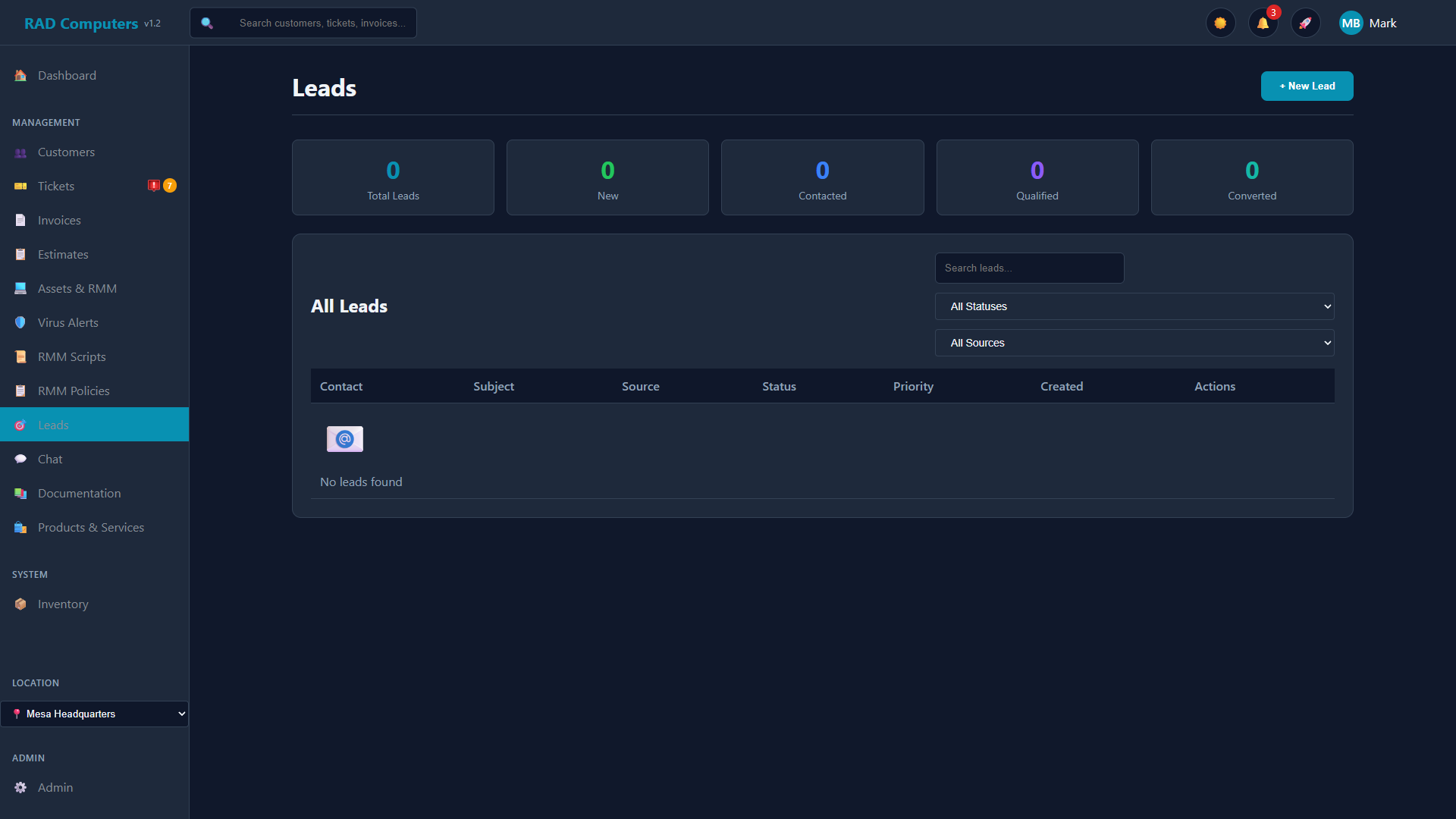
The Leads management interface showing all leads with status filters
Overview
The Leads module is your CRM hub for managing potential customers before they become paying clients. Capture inquiries from inbound emails, phone calls, walk-ins, or manual entry. Track follow-up activities and convert qualified leads into customers when they are ready to do business.
Effective lead management helps you:
- Never lose track of potential business opportunities
- Follow up consistently with interested prospects
- Measure marketing effectiveness by tracking lead sources
- Build a predictable sales pipeline for your repair shop

Lead Capture
Capture leads from inbound emails, phone calls, walk-ins, referrals, or manual entry.

Pipeline Tracking
Track leads through statuses: New, Contacted, Qualified, Converted, and Lost.

Email Integration
View email threads and send follow-up replies directly from lead records.

Easy Conversion
Convert qualified leads to customers and optionally create a ticket in one step.
What is a Lead vs. a Customer?
Understanding the distinction between leads and customers is essential for effective pipeline management:
| Lead | Customer |
|---|---|
| A potential customer who has shown interest | Someone who has done business with you |
| May have inquired but not yet purchased | Has an active ticket, invoice, or history |
| Stored in the Leads module for nurturing | Stored in the Customers database |
| Cannot have tickets or invoices attached | Can have tickets, invoices, assets, and history |
| Focus: Qualification and conversion | Focus: Service delivery and retention |
Convert a lead to a customer when they are ready to bring in a device for repair, request an estimate, or make a purchase. This unlocks the full customer features including tickets, invoices, and asset tracking.
Lead List View
The Leads list provides a comprehensive view of all your prospects with powerful filtering and search capabilities.
List Features
- View all leads in a sortable table format
- Filter by status (New, Contacted, Qualified, Converted, Lost)
- Filter by source (Email, Phone, Website, Referral, Walk-in, Other)
- Search by name, email, or subject
- Sort by any column by clicking the column header
- Click any row to view full lead details
Displayed Information
| Column | Description |
|---|---|
| Contact | Lead's name and email address (click to view details). Shows "Existing Customer" badge if the email matches a customer record. |
| Subject | Subject line or inquiry topic |
| Source | Where the lead came from (Email, Phone, Website, Referral, Walk-in, Other) |
| Status | Current pipeline status with color coding |
| Priority | Lead priority level (Urgent, High, Medium, Low) |
| Created | Date the lead was added |
Capturing Leads
There are multiple ways to add leads to your system:
Manual Entry
Click Leads in the main navigation menu.
Click the + New Lead button in the top right corner.
Fill in the lead's details:
- Name - Full name (optional)
- Email - Email address (required)
- Phone - Phone number
- Source - Where they heard about you (Phone, Email, Walk-in, Website, Referral, Other)
- Subject - Brief description of their inquiry
- Message - Full details about their inquiry or needs
Click Create Lead to add the lead. It will appear in the list with "New" status.
Email-to-Lead (Automatic)
When the email system is configured, inbound emails to your support address automatically create leads:
When someone emails your support address, a lead is automatically created with their email address, name (if available), subject line, and message body. If the email matches an existing customer, the lead shows an "Existing Customer" badge.
Email-to-Lead features:
- Leads are created automatically from inbound emails
- Source is set to "Email" automatically
- If a lead already exists for that email address, the new email is added as a note instead of creating a duplicate
- Email threads are tracked and viewable in the lead detail view
Lead Statuses
Leads progress through different statuses as you work them through your sales pipeline:
| Status | Color | Meaning |
|---|---|---|
| New | Green | Fresh lead that has not been contacted yet |
| Contacted | Blue | Initial contact has been made, awaiting response |
| Qualified | Purple | Lead has genuine interest and potential to convert |
| Converted | Teal | Successfully converted to a customer |
| Lost | Red | Lead is no longer interested or not a good fit |
Update lead statuses promptly after each interaction. This keeps your pipeline accurate and helps identify leads that need attention. The dashboard shows counts for each status to help you track your pipeline.
Following Up with Leads
Consistent follow-up is key to converting leads. RAD Repairs provides tools to help you stay on top of your pipeline.
Viewing Lead Details
Click on a lead in the list to open their detail modal. You will see their contact information, the original message, and the email thread.
The email thread section shows all inbound and outbound emails for this lead, helping you understand the full conversation history.
Sending Replies
Reply to leads directly from the lead detail view:
- Type your message in the Reply box at the bottom of the lead detail modal
- Click Send Reply to send the email
- The email is logged in the lead's email thread
- The lead's status is automatically updated to "Contacted" when the reply is sent
Converting Leads to Customers
When a lead is ready to do business, convert them to a customer. You can also optionally create a ticket at the same time.
Click on the lead in the list to open their detail view, or click the checkmark action button directly from the list.
Click the Convert to Customer button at the bottom of the lead detail modal.
Fill in the conversion form:
- First Name - Customer's first name (pre-filled from lead name)
- Last Name - Customer's last name (pre-filled from lead name)
- Phone - Phone number (pre-filled from lead phone)
Check the Create ticket immediately option to create a service ticket along with the customer:
- Ticket Subject - Pre-filled from lead subject
- Ticket Description - Pre-filled from lead message
Click Convert to create the customer (and ticket if selected). You will be redirected to the new ticket or customer view.
- A new customer record is created with the lead's email and contact information
- The lead is marked as "Converted" and linked to the customer
- If selected, a new ticket is created and linked to the customer
- Any emails associated with the lead are linked to the new customer
- You can now create additional tickets, invoices, and assets for this customer
Creating Tickets for Existing Customers
If a lead's email matches an existing customer (shown with an "Existing Customer" badge), you can create a ticket directly without converting:
- Click the ticket icon button in the Actions column, or
- Open the lead detail and click Create Ticket
This creates a new ticket for the existing customer using the lead's subject and message.
Lead Source Tracking
Understanding where your leads come from helps you focus on effective channels.
Available Lead Sources
| Source | Description |
|---|---|
| Leads from inbound emails (set automatically for email-to-lead) | |
| Phone | Inquiries received via phone call |
| Walk-in | People who visited your shop in person |
| Website | Leads from your website |
| Referral | Referred by an existing customer or contact |
| Other | Any other source not listed above |
Lead Statistics
The Leads page shows statistics at the top of the page:
- Total Leads - Total number of leads in the system
- New - Leads that have not been contacted yet
- Contacted - Leads that have been reached out to
- Qualified - Leads that show genuine interest
- Converted - Leads that have become customers
Email Integration
View email history and send replies to leads directly from within RAD Repairs.
Viewing Email Threads
Each lead detail view shows the complete email thread:
- Inbound emails - Emails received from the lead (shown with different background)
- Outbound emails - Emails you have sent to the lead
- Each email shows the sender, date/time, and message content
Sending Replies
Click on the lead you want to reply to.
Scroll down to the Reply box and type your message.
Click Send Reply. The email is sent and added to the email thread.
Email sending and receiving requires proper email configuration in Admin Settings. Contact your administrator if email features are not working.
Frequently Asked Questions
What happens to a lead after conversion?
The lead remains in your system with "Converted" status and is linked to the customer record. The lead's email history is also linked to the new customer. This preserves the history for reference.
Can I delete a lead?
Yes. Click the trash icon in the Actions column for the lead you want to delete. You will be asked to confirm. Note: It is often better to mark leads as "Lost" instead to maintain records. Deleting a lead also removes any associated emails.
What if a lead's email already belongs to a customer?
If the lead's email matches an existing customer, the lead will show an "Existing Customer" badge. You can click this badge to view the customer, or create a ticket directly for that customer without needing to convert.
Can multiple users work with the same leads?
Yes. Leads are visible to all users, so anyone on the team can open a lead, send a reply, or convert it to a customer.
What is lead priority?
Leads have a priority level (Urgent, High, Medium, Low) shown with colored indicators in the list. This helps you focus on the most important leads first. New leads default to Medium priority.
Can leads have tickets or invoices?
No. Tickets, invoices, estimates, and assets require a customer record. Convert the lead to a customer first to access these features. During conversion, you can optionally create a ticket immediately.
What happens when someone emails again after being marked as a lead?
If an email arrives from an address that already has an open lead (not converted), the email is added as a note to the existing lead rather than creating a duplicate.
Related Documentation
 Tickets
 Admin Settings
Need Help?
Have questions about lead management or CRM features? Our support team is here to help.
Contact Support