Products & Services
Manage your complete catalog of products and services for use in tickets, invoices, and estimates
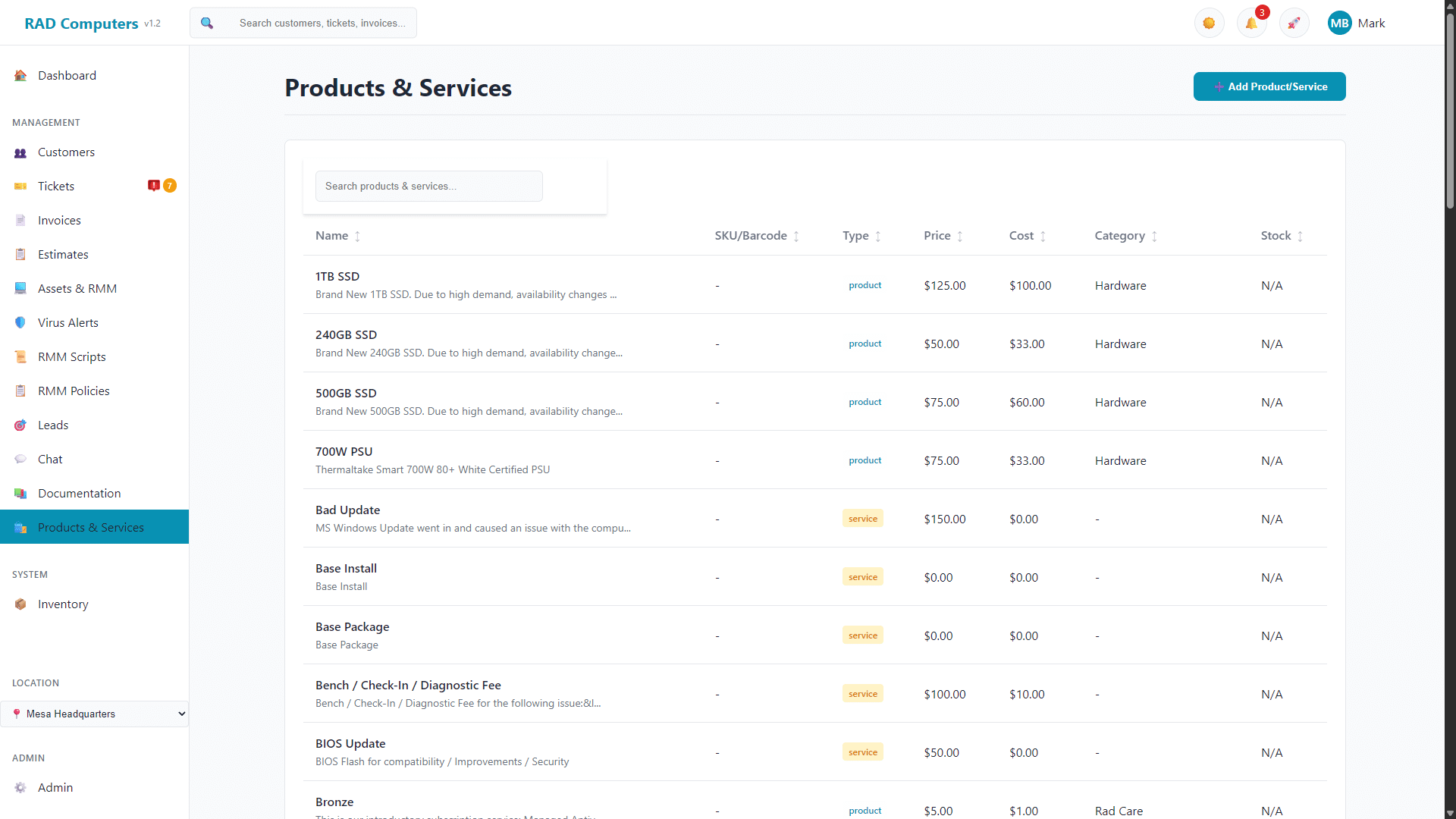
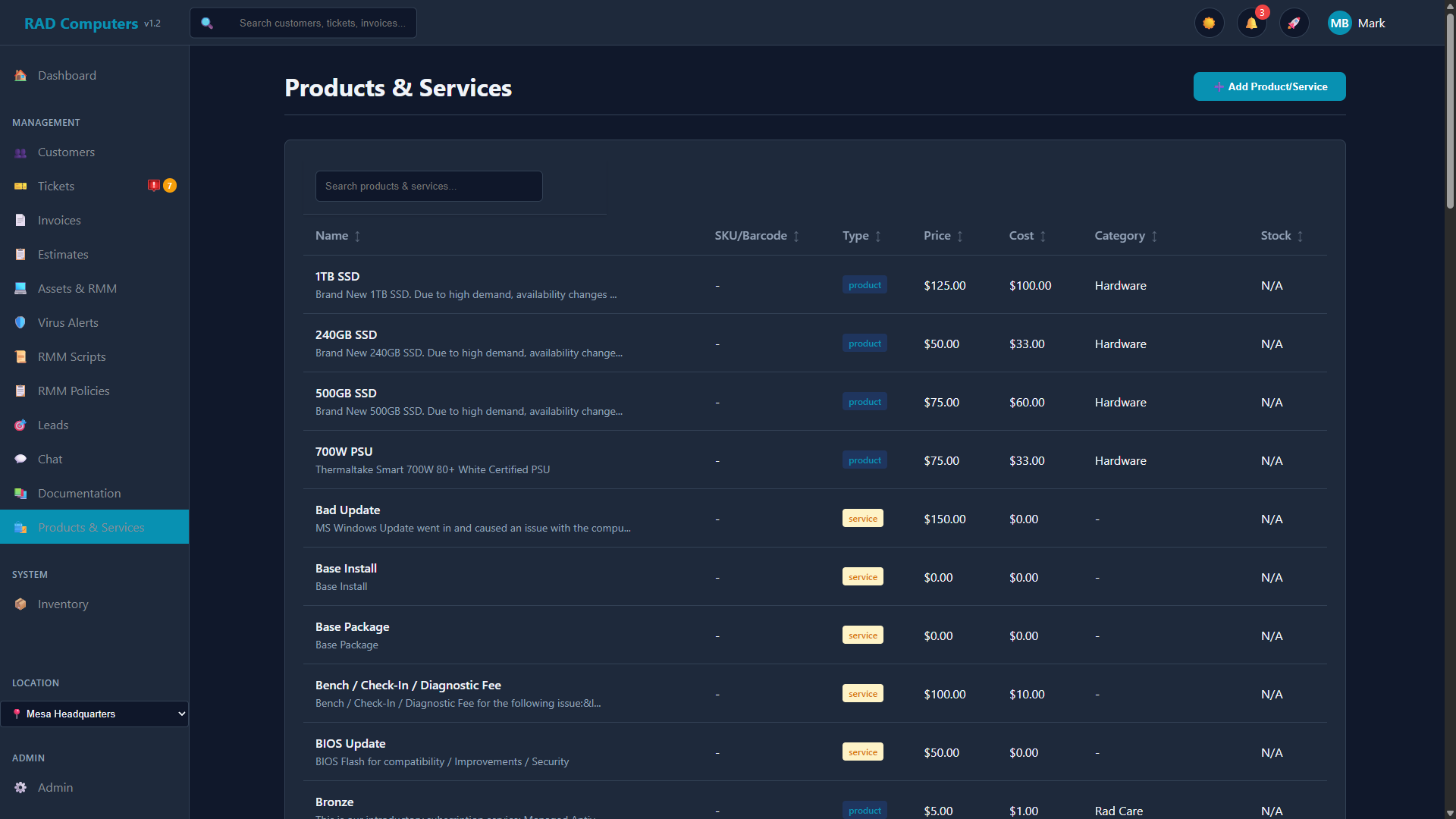
The Products & Services catalog showing all items with filtering and search capabilities
Overview
The Products & Services catalog is the central hub for managing all billable items in your repair shop. Whether you sell physical products like parts and accessories, or provide services like virus removal and data recovery, everything lives in this unified catalog.

Products
Physical items with SKU, barcode, UPC, inventory tracking, cost, and selling price for margin analysis.

Services
Labor and service items with flat-rate pricing for repairs, diagnostics, and installations.

Pricing Control
Set prices, costs, tax settings, and commissions per item with full profit margin visibility.

Categories
Organize items into categories created inline for easy browsing and reporting.

Automated Reminders
Send warranty expiring and maintenance reminder emails automatically to customers.

Integrations
Link items to QuickBooks for seamless accounting and track manufacturer/vendor info.
Products vs Services
Understanding the difference between products and services helps you set up your catalog correctly:
| Aspect | Products | Services |
|---|---|---|
| Type | Physical items you sell | Labor or work you perform |
| Examples | RAM, SSD, cables, accessories | Virus removal, data recovery, diagnostics |
| Inventory | Can track stock levels with reorder alerts | Typically not tracked (option available) |
| SKU/Barcode | SKU, Barcode, and UPC fields available | Optional service code in SKU field |
| Pricing | Fixed price per unit | Flat fee per service |
| Cost | Purchase cost from supplier | Internal labor cost (for margin tracking) |
| Manufacturer Info | Manufacturer, model, vendor fields | Typically not used |
| Condition | New, Used, or Refurbished | Typically not applicable |
If you're unsure whether to create something as a product or service, ask yourself: "Do I need to track inventory for this?" If yes, it's a product. If no, it's likely a service.
Adding a Product
Products are physical items you sell, such as replacement parts, cables, or accessories. Here's how to add one:
Click Products & Services in the main navigation menu, then click the + Add Product/Service button.
Fill in the product information:
| Field | Description | Required |
|---|---|---|
| Name | Display name shown on invoices (e.g., "8GB DDR4 RAM") | Yes |
| Item Type | Select "Product" for physical items | Yes |
| Description | Rich text description with formatting, lists, and images (WYSIWYG editor) | No |
| SKU | Internal Stock Keeping Unit for your reference | No |
| Barcode | Scannable barcode for quick lookup at point of sale | No |
| UPC | Universal Product Code for manufacturer identification | No |
| Cost | Your purchase cost from supplier (for margin tracking) | No |
| Price | Selling price to customers (before tax) | Yes |
| Image URL | URL to a product image for visual reference | No |
| Manufacturer | Product manufacturer name (e.g., "Samsung", "Crucial") | No |
| Model Number | Manufacturer's model number for exact identification | No |
| Vendor | Supplier you purchase this product from | No |
| Taxable | Whether sales tax applies to this item (checked by default) | No |
| Maintain Stock | Enable to track inventory levels for this product | No |
| Category | Product category for organization - can create new categories inline | No |
| Condition | New, Used, or Refurbished | No |
| Warranty Period | Duration of warranty (number + days/weeks/months/years) | No |
| Commission | Sales commission amount for this product | No |
| QuickBooks Item | Linked QuickBooks item name for accounting integration | No |
| Notes | Internal notes about this product (not shown to customers) | No |
Click Save Product. The product is now available in your catalog.
Use a consistent SKU format like: CATEGORY-BRAND-MODEL (e.g., RAM-CORS-8GB, SSD-SAMS-500). This makes searching and inventory management easier.
When you edit an existing product, a checkbox appears: "Also update recurring invoices that use this product with the new price." Check it before saving to push the new price to every recurring invoice that includes this product — matching line items are repriced and the invoice totals recalculated, and a toast tells you how many were updated. Leave it unchecked to change the product's price without touching existing recurring invoices. (RMM maintenance-plan charges are priced from the plan settings and aren't affected either way.)
Stock Tracking Fields
When you enable Maintain Stock, additional fields appear:
| Field | Description |
|---|---|
| Quantity | Current stock level on hand |
| Reorder At | Low stock threshold - the item shows as "Low Stock" on the Inventory page when stock falls to this level |
| Desired Stock Level | Target quantity to maintain - useful for reorder calculations |
Automated Email Reminders
Products can trigger automatic email reminders to customers after purchase:
Warranty Expiring Reminder
When enabled, customers automatically receive a reminder email before their warranty expires. Configure how many days before expiration to send the reminder (default: 30 days).
Maintenance Recommended Reminder
When enabled, customers receive a reminder to bring their device in for maintenance. Configure the interval after purchase (e.g., 6 months). Perfect for recurring services like annual tune-ups or filter replacements.
Customize the content of these automated emails in Admin Settings > Email Templates. Look for "Warranty Expiring" and "Maintenance Recommended" templates.
A reminder is scheduled when an invoice containing the product (or service) is marked paid — by any method, including cash, check, card, or online payment. The interval is counted from the invoice date, and there is no maximum (e.g. a 36-month reminder is scheduled 3 years out and sent when it comes due). The customer must have an email address on file. Reminders are only scheduled for invoices paid after the item's reminder is enabled, so enable it before invoicing.
Adding a Service
Services represent labor or work you perform, billed as a flat fee.
From the Products & Services page, click the + Add Product/Service button and select "Service" as the Item Type.
Fill in the service information. Services use the same form as products but typically do not require stock tracking.
| Field | Description | Required |
|---|---|---|
| Name | Service name (e.g., "Virus Removal", "Data Backup") | Yes |
| Item Type | Select "Service" for labor and work performed | Yes |
| Description | What's included in this service (WYSIWYG editor with formatting) | No |
| SKU | Optional service code for internal reference | No |
| Cost | Internal labor cost (for profitability tracking) | No |
| Price | Service fee charged to customers | Yes |
| Category | Service category (e.g., "Repairs", "Diagnostics") - can create new inline | No |
| Taxable | Whether sales tax applies (varies by jurisdiction) | No |
| Commission | Sales commission amount for this service | No |
| QuickBooks Item | Linked QuickBooks item for accounting | No |
| Notes | Internal notes (not shown to customers) | No |
While the "Maintain Stock" option is available for services, it is typically not used since services represent labor rather than physical inventory.
Tax rules for services vary by location. Some jurisdictions tax labor, others don't. Consult your accountant to set this correctly.
Categories and Organization
Categories help you organize your catalog and make it easier to find items when creating invoices or estimates.
Creating Categories
Categories can be created directly when adding or editing a product/service:
- In the product/service form, click the Category dropdown
- Select + New Category at the top of the list
- Enter the new category name in the field that appears
- Save the product/service - the category is created automatically
Existing categories appear in the dropdown and can be reused across multiple products and services.
Suggested Category Structure
| Type | Suggested Categories |
|---|---|
| Products | Memory, Storage, Cables, Peripherals, Accessories, Networking |
| Services | Diagnostics, Virus/Malware, Hardware Repair, Software, Data Recovery, Setup/Installation |
Pricing Strategies
Set up your pricing to maximize profitability while remaining competitive.
Cost and Price
Enter both the Cost (what you pay) and the Price (what you charge) for each item. Both are shown as columns in the catalog list, giving you at-a-glance visibility into your margins.
If you buy an SSD for $50 (cost) and sell it for $75 (price), your markup is 50% and your profit margin is $25 per unit.
Common Markup Strategies
- Parts: 30-50% markup is common for replacement parts
- Accessories: 50-100% markup for cables, cases, peripherals
- Services: 2-3x labor cost for hourly services
- Flat Rate Services: Based on average time + parts + overhead
Cost Tracking for Profit Margins
Tracking costs is essential for understanding your true profitability.
Why Track Costs?
- See real profit margins on every sale
- Identify which products/services are most profitable
- Make informed pricing decisions
- Generate profit reports by category or item
- Track changes in supplier pricing over time
Viewing Profitability
The catalog list shows each item's Price and Cost side by side (along with name, SKU/barcode, type, category, and stock). Subtract cost from price to see your profit per unit on any item.
Inventory Tracking for Products
Products can have inventory tracking enabled to maintain accurate stock levels.
Enabling Inventory Tracking
Click on the product row in the table to open the edit form.
Check the Maintain Stock? checkbox. This reveals additional fields:
- Quantity - Current stock on hand
- Reorder At - Low stock threshold for alerts
- Desired Stock Level - Target quantity to maintain
How Inventory Updates
- Stock quantities are updated by editing the product and changing the Quantity field
- The Inventory page shows current levels and stock status for all tracked items
- If you use the Syncro integration, product quantities can be kept in sync between systems
Set a reorder point for each product. When stock falls to or below this level, the item shows a yellow "Low Stock" indicator on the Inventory page (red "Out of Stock" when it hits zero).
Using Items in Tickets, Invoices, and Estimates
Once your catalog is set up, adding items to documents is quick and easy.
Adding Items to an Invoice or Estimate
- In the line items section, start typing the product/service name
- Select from the dropdown of matching items
- The price, tax setting, and description auto-populate
- Adjust the quantity as needed
- Optionally modify the price for this specific document
From Ticket to Invoice
When creating an invoice from a ticket:
- The customer information is pre-filled and the ticket is automatically linked
- Products used and services performed during the repair can be quickly added from your catalog
- Use the ticket's time tracking totals as a guide when adding labor charges
You can also create ad-hoc line items that aren't in your catalog. This is useful for one-time charges, but won't affect inventory or appear in catalog reports.
Bulk Operations
For large catalog management, products and services can be added individually through the interface. The system supports search and pagination for efficient browsing of large catalogs.
The products table supports pagination with 25, 50, or 100 items per page. Use the search box to quickly filter by name, description, SKU, or category.
Frequently Asked Questions
Can I have the same item at different prices?
The catalog stores a default price, but you can override the price on any individual invoice or estimate. For recurring price variations (e.g., wholesale vs retail), consider creating separate items or using customer-specific pricing.
How do I track bundled services?
Create a flat-rate service that represents the bundle (e.g., "Complete Tune-Up Package"). Set the price to your bundle price. You can note what's included in the description.
What happens when I delete an item?
Deleting a product or service removes it from the catalog and from search when creating invoices, but it stays on any existing invoices and estimates, so your historical records are unaffected.
How do I change the tax rate for items?
Tax rates are configured globally in Admin Settings > Tax Settings. Individual items are marked as taxable or non-taxable, and the global rate is applied to taxable items.
Can I use barcodes/SKUs for quick lookup?
Products have separate fields for SKU (internal reference), Barcode (scannable), and UPC (manufacturer code). The catalog search box matches on name, description, SKU, and category, so a consistent SKU scheme makes items quick to find.
How do I set up minimum labor charges?
Create a flat-rate service called "Minimum Service Fee" or "Diagnostic Fee" with your minimum charge. Add this to invoices when the actual labor time would be less than your minimum.
Who can see item costs?
Cost is shown in the catalog list and edit form to any user who has access to the Products & Services page. Costs never appear on customer-facing invoices or estimates - customers only ever see the selling price.
How do I handle warranty replacements?
Create a $0 priced item called "Warranty Replacement" or similar. Add it to the invoice with the product name in the description. This keeps records without charging the customer.
Can I track manufacturer and vendor information?
Yes. Products have dedicated fields for Manufacturer, Model Number, and Vendor. This helps with supplier management and product identification.
How do automated email reminders work?
When adding a product, you can enable warranty expiring reminders (sent before warranty ends) and maintenance reminders (sent after a set period post-purchase). Customize the email content in Admin Settings under Email Templates.
Can I link products to QuickBooks?
Yes. Each product/service has a "Linked QuickBooks Item" field where you can enter the corresponding QuickBooks item name for accounting integration.
What is the Condition field for?
The Condition field lets you specify whether items are New, Used, or Refurbished. This is helpful for repair shops that sell second-hand or reconditioned equipment.
Additional Features
Rich Text Descriptions
The description field uses a WYSIWYG (What You See Is What You Get) editor with full formatting support:
- Bold, italic, and underline text
- Headings and paragraph formatting
- Bulleted and numbered lists with nested indentation
- Insert links and images
- Undo/redo functionality
Commission Tracking
Set a commission amount per product or service. This can be used for sales team compensation or partner referral tracking.
Product Condition
Mark items as New, Used, or Refurbished - useful for repair shops that resell equipment or offer reconditioned devices.
Limits & Considerations
- The system does not enforce unique SKUs - use a consistent scheme and avoid duplicates yourself
- Deleting a product/service removes it from future use but keeps it on existing invoices
- Price changes do not affect previously created invoices (they keep the price at time of creation)
- Categories are created inline when adding products - ensure consistent naming
- Automated email reminders require email templates to be configured in Admin Settings
Related Documentation
 Invoices
 Estimates
 Tickets
 Admin Settings
 Reports
Need Help?
Have questions about setting up your product and service catalog? Contact our support team.
Contact Support