Admin Settings
The Admin Settings hub is your central location for configuring all aspects of your RAD Repairs system. From branding and user management to integrations and security, everything is managed here.
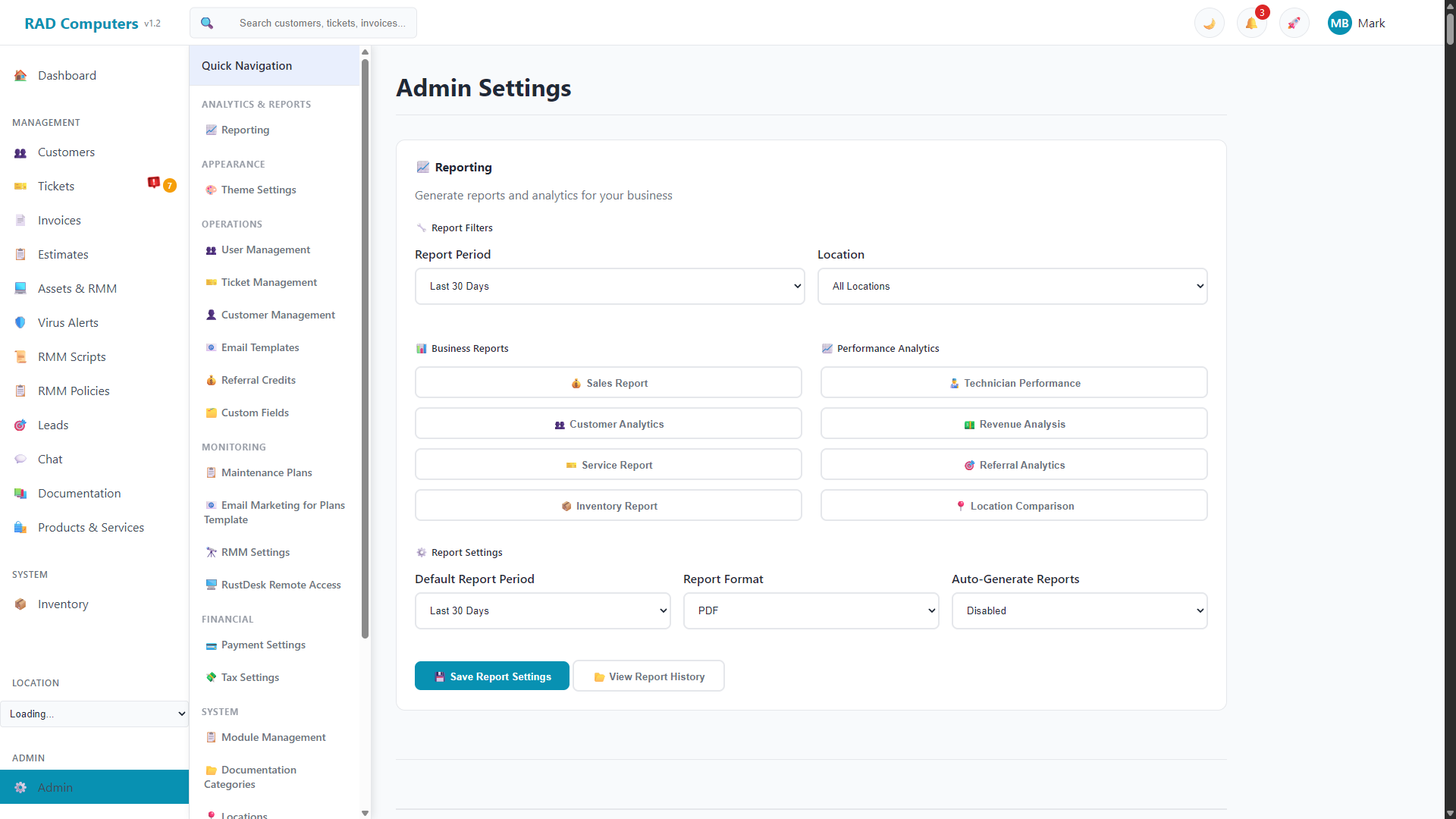
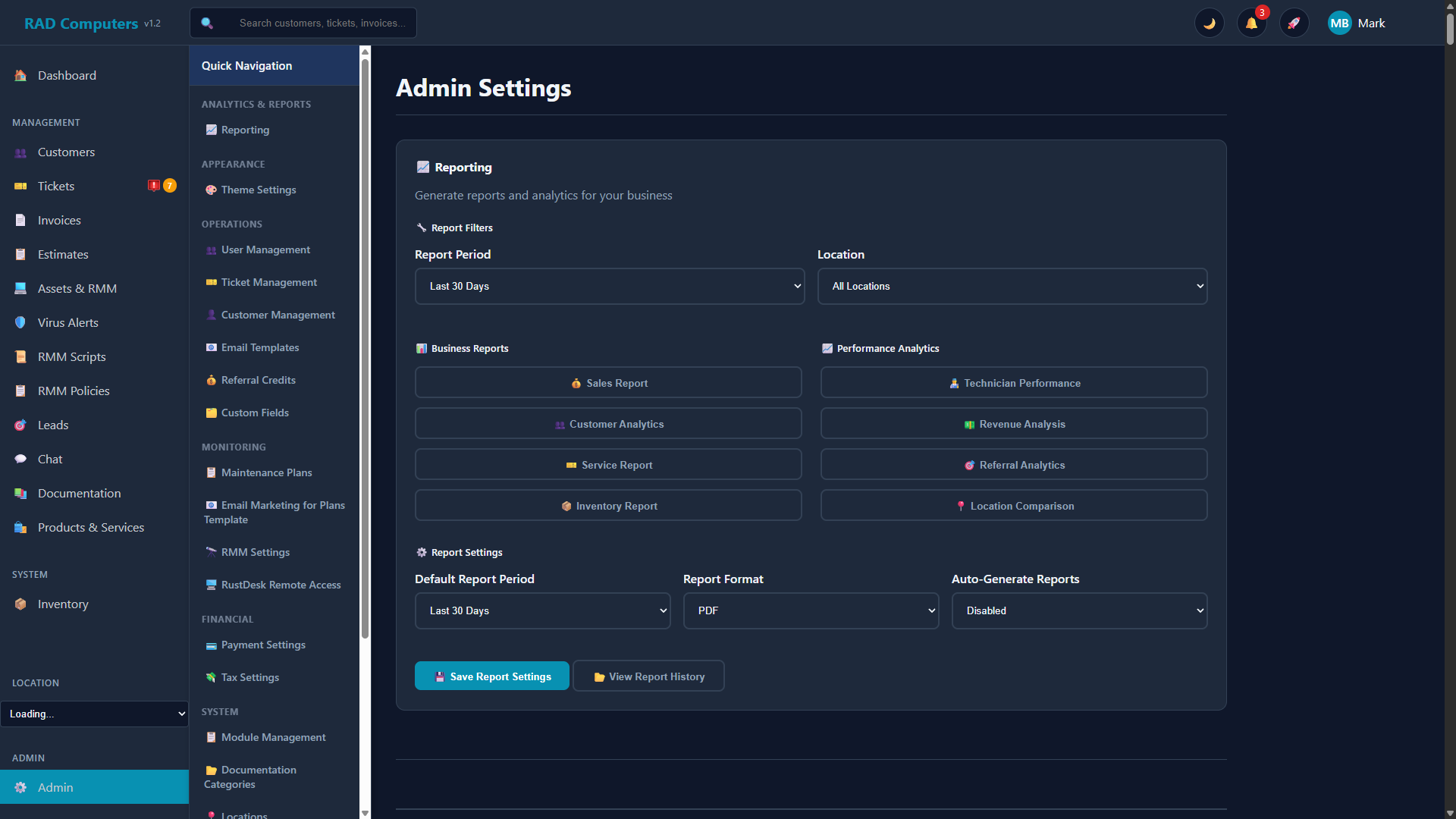
The Admin Settings dashboard provides quick access to all configuration areas
Overview
The Admin Settings area is reserved for users with administrator privileges. Here you can configure every aspect of your repair shop software, including:
- Visual Customization - Set your brand colors, logo, and theme preferences
- Team Management - Create and manage user accounts with role-based permissions
- Workflow Configuration - Customize ticket statuses, issue types, and worksheets
- Communication Settings - Configure email templates and notification preferences
- Financial Settings - Set up payment processing, tax configurations, and your own subscription
- RMM & Managed Services - Configure RMM branding, maintenance plans, asset approval, and remote access
- Integrations - Connect with third-party services like Syncro MSP, Stripe, and RustDesk
- Security - Two-factor authentication (TOTP) and active session management
Admin Access Required: The Admin Settings area is only accessible to users with administrator privileges. If you need access to these settings, contact your system administrator to have your account upgraded.
Admin Sections
Click on any section below to view detailed documentation for that configuration area.

Reporting
Generate business PDF reports on sales, customers, service, inventory, technicians, revenue, referrals, and locations.

Theme Settings
Customize your brand colors, logo, and visual appearance across the application.

User Management
Manage team accounts, assign roles, and control user permissions.

Ticket Management
Configure ticket statuses, issue types, and repair worksheets.

Customer Management
Set up customer settings, required fields, and default values.

Email Templates
Customize automated email notifications and templates.

Referral Credits
Configure referral rewards to incentivize customer referrals.

Custom Fields
Add custom data fields to tickets, customers, and assets.

Maintenance Plans
Create RMM maintenance plan tiers with pricing for automatic recurring billing of managed devices.
Email Marketing for Plans
Promote your maintenance plans to customers with automated marketing emails.

RMM Settings
Configure RMM branding, plan display names, asset approval, and the company info shown in the customer tray app.

RustDesk Remote Access
Connect your self-hosted RustDesk server for remote access to managed devices.

Payment Settings
Configure Stripe integration for online payment processing.

Tax Settings
Set up tax rates and configure tax calculation rules.

Module Management
Enable or disable application modules to match how your shop works.

Documentation Categories
Organize your internal documentation with custom categories.

Locations
Manage shop locations, addresses, and contact information.

AutoPrinter
Configure automatic document printing for receipts and labels.

System Settings
General system configuration and application preferences.

Security Settings
Configure password policies, 2FA, and session management.
Subscription & Billing
Manage your RAD Repairs subscription, trial status, and billing details.

Syncro MSP Integration
Sync and import customers, tickets, estimates, and invoices with Syncro MSP.
Getting Started with Admin Settings
If you are setting up RAD Repairs for the first time, we recommend configuring these areas in order:
Theme Settings
Upload your logo and set your brand colors to give the application your shop's identity.
Locations
Add your shop location(s) with addresses and contact information that will appear on documents.
User Management
Create accounts for your technicians and staff with appropriate role-based permissions.
Ticket Management
Customize ticket statuses and issue types to match your repair workflow.
Payment & Tax Settings
Configure Stripe for online payments and set up your tax rates for accurate invoicing.
Related Pages


Need Help with Configuration?
If you need assistance setting up your admin settings or have questions about specific options, our support team is here to help.
Contact Support