PC Repair Tracker
Move your customers, work orders, invoices, payments and inventory from PC Repair Tracker (PCRT) into RAD Repairs by uploading a copy of its database.
Before You Start
PC Repair Tracker has no online connection to read from, so the import works from an export of its MySQL database. Only the account owner or an admin can run it, from App Center > PC Repair Tracker.
- Set up your Locations first. Each PCRT store is matched to the RAD Repairs location with the same name; work orders, invoices and stock from a store with no match go to your main location.
- Add your technicians as users first if you want work orders assigned to them. A work order is linked to a user whose username, or first and last name, matches the PCRT username (or the employee name linked to it). Otherwise the ticket keeps the technician's name only.
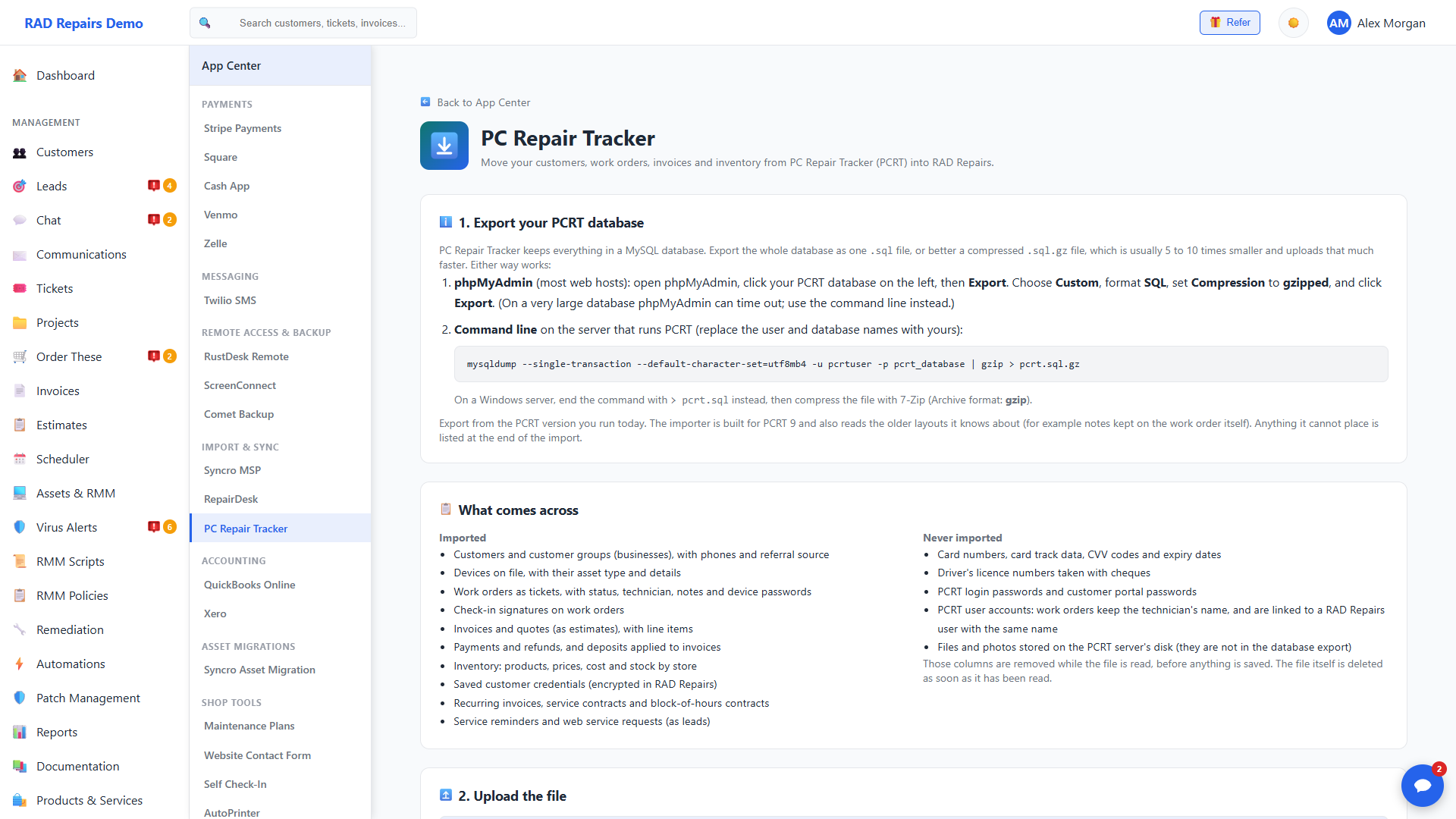
The PC Repair Tracker page: export instructions, what comes across and what never does, the upload box, the list of what was found in the file, and the import progress with a result for each step.
Step 1: Export Your PCRT Database
Export the whole database as one .sql file, or better, a compressed .sql.gz file. A compressed export is usually 5 to 10 times smaller and uploads that much faster.
- phpMyAdmin (most web hosts): select your PCRT database, click Export, choose Custom, keep the format on SQL, set Compression to gzipped and click Export. On a very large database phpMyAdmin can time out; use the command line instead.
- Command line on the PCRT server:
mysqldump --single-transaction --default-character-set=utf8mb4 -u USER -p DATABASE | gzip > pcrt.sql.gz. On a Windows server, end the command with> pcrt.sqland compress the file with 7-Zip (Archive format: gzip).
Step 2: Upload the File
Choose the file. The page shows its size and an estimate of how long the upload and the reading will take. Click Upload and read. The file is sent in pieces, then read once on the server. The list under Check what was found and import shows how many customers, work orders, invoices and so on were found. If the file is not a PCRT database, or it is cut off, the page says so.
The file itself is deleted as soon as it has been read. The rows needed for the import are kept until you click Delete uploaded data, upload a new file, or 14 days pass.
Large Databases
- How long it takes: the upload depends on your internet upload speed, roughly 15 minutes per GB at 10 Mbps or 3 minutes per GB at 50 Mbps. Reading the file on the server takes about 2 minutes per GB. While uploading, the page shows the speed and the time left; while reading, the percentage read and the time left. The largest file accepted is 4 GB.
- Keep the page open until the upload reaches 100%. The page keeps your screen awake while it uploads (in browsers that support it) and keeps you signed in. Do not close the laptop lid or let the computer sleep. You can use other tabs. The tab title shows the percentage uploaded.
- Pause and continue: click Pause to stop the upload and Continue to carry on from the same point.
- If the upload stops (the connection drops, the page is closed or the computer sleeps), open the page again within 24 hours and choose the same file. The button changes to Continue upload and the upload carries on where it stopped. The server checks that it is the same file. Click Discard the stopped upload to start over instead.
- After 100% the file is read on the server. You can leave the page; come back later to start the import.
- If the server does not have room for the file, the page says so before the upload starts. Compress the file, or contact RAD Repairs support.
From the Welcome Wizard
A new shop can do the same from the last step of the Welcome Wizard: Data Migration → PC Repair Tracker. Upload the file there, tick the two options, and click Import and Complete Setup; the import starts and keeps running in the background. Setup cannot be completed while the file is still uploading. While it is being read you can wait, or click Skip & Finish and start the import from this page later.
Step 3: Import
Two options come first:
- Keep recurring invoices running - off by default, so recurring invoices arrive paused and nothing is billed twice while you are still using PCRT. Resume each one from Invoices when you are ready. A schedule RAD Repairs does not have (every 2 months, 4 or 5 years) always arrives paused with a note.
- Keep upcoming service reminders active - off by default. When it is on, reminders that are still due are emailed to the customer on their date. Either way, every reminder is written into the customer's notes.
Click Start import. The progress bar and the step name update as it runs, and you can Pause, Resume or Stop it. When it finishes, the page lists how many records each step imported, updated or skipped, and any record that could not be imported with the reason.
What Comes Across
- Customers - PCRT customer groups become customers. A device on file with no group becomes a customer of its own; devices that share an email address, or a phone number and name, are merged into one customer. A person at a business who is not the main contact becomes a contact.
- Devices - every device on file becomes an asset with its make, model, type and details. A Windows product key or password kept in the device details goes to the customer's encrypted Credentials, not to the notes.
- Work orders - become tickets numbered
Tplus the PCRT work order number (for example T5001), with the problem, technician, priority, due time and store. PCRT statuses map to Open, In Progress, Waiting for Parts and Resolved; any other status keeps its PCRT name. Device passwords are encrypted. - Notes - notes for the customer stay customer-visible; private notes stay private. Timer entries become time entries for technicians with a RAD Repairs login, otherwise a private note. Travel, parts ordered and items added but not yet invoiced arrive as private notes; parts still on order also appear in Order These.
- Signatures - check-in, repair report and checkout signatures are attached to the ticket.
- Invoices and quotes - invoices keep their PCRT number when it is free (otherwise
PCRT-is added), with line items, tax and status (open, paid or void). Quotes become estimates. Counter sales without an invoice become paid invoices numberedPCRT-Rplus the receipt number. - Payments - each payment is recorded on the invoice it paid, with its method and reference. Refunds are recorded as refunds against the original sale. A deposit not yet used becomes a part payment on its invoice, or store credit for the customer.
- Inventory - items with price, cost, category and stock per location; preset labor and non-inventory items become services and products.
- Recurring invoices, contracts and block hours - recurring invoices keep their next date and lines. Service contracts and block-of-hours contracts become contracts; a block contract notes hours bought, used and remaining.
- Web service requests that were not turned into a work order become Leads.
What Is Never Imported
- Card numbers, card track data, CVV codes, expiry dates, cheque numbers and driver's licence numbers.
- PCRT login passwords, PINs, two-factor secrets and customer portal passwords. PCRT user accounts do not become RAD Repairs logins.
- Custom payment fields (they can hold account numbers), employee wages and store print templates.
- Files and photos stored on the PCRT server's disk - they are not part of the database export.
These columns are removed while the file is read, before anything is saved.
Running It Again
You can upload a newer export later - for example on the day you stop using PCRT - and run the import again. Records already imported are not duplicated. New customers, work orders, notes, invoices and payments are added; work order statuses, paid or voided invoices and stock counts are brought up to date. Changes you made in RAD Repairs to imported records are kept, except a work order whose PCRT status changed since the last import.
Check before you switch: after the import, open a few customers, tickets and invoices and compare them with PCRT. When you are happy, click Delete uploaded data.