Tax Settings

Configure tax rates, tax calculation rules, and exemptions to ensure accurate tax collection on your invoices and estimates. RAD Repairs supports flexible tax configurations for various jurisdictions and business requirements.

Tax Settings Configuration
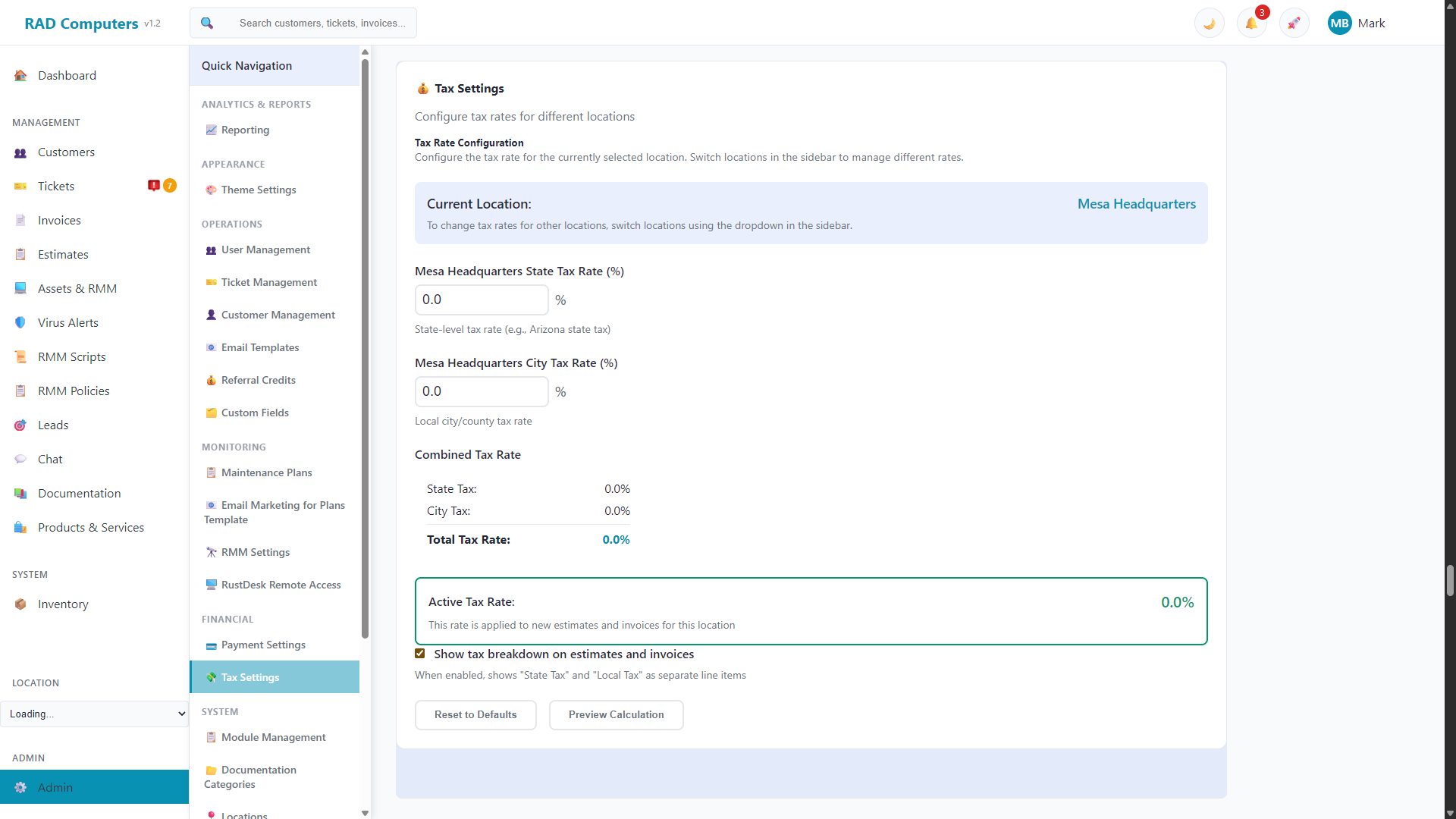
Tax Settings - Light Mode

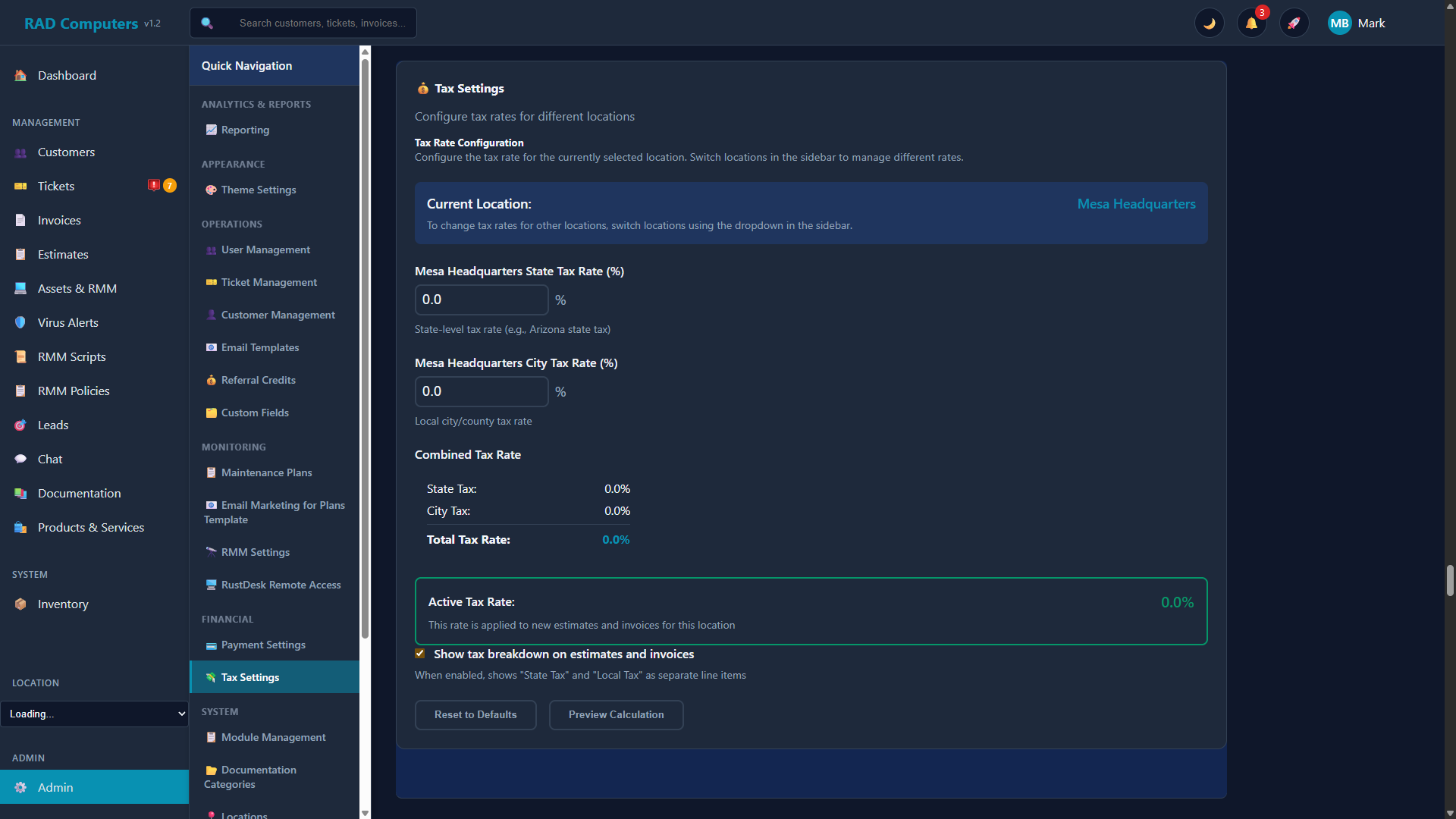
The Tax Settings page allows you to configure tax rates and calculation rules

Overview

The Tax Settings page in Admin Settings allows you to configure how taxes are calculated and applied throughout RAD Repairs. Proper tax configuration ensures compliance with local tax laws and accurate financial reporting.

💰

Multiple Tax Rates

Create and manage multiple tax rates for different products, services, or jurisdictions.

📋

Automatic Calculation

Taxes are automatically calculated on invoices and estimates based on your configuration.

👥

Customer Exemptions

Mark customers as tax-exempt for nonprofit organizations and government agencies.

📈

Tax Reporting

Generate detailed tax reports for filing and reconciliation purposes.

Tax Compliance Note: Tax laws vary by location and can change frequently. Consult with a tax professional or accountant to ensure your tax settings comply with local regulations. RAD Repairs provides the tools, but you are responsible for setting the correct rates.

Adding Tax Rates

Create new tax rates to apply to your products and services. You can have multiple tax rates for different purposes or jurisdictions.

1

Navigate to Tax Settings

Go to Admin Settings and click on Tax Settings in the admin panel.

2

Click Add Tax Rate

Click the + Add Tax Rate button to open the tax rate creation form.

3

Enter Tax Details

Fill in the required information:

  • Tax Name - A descriptive name (e.g., "State Sales Tax", "County Tax")
  • Tax Rate (%) - The percentage rate (e.g., 7.5 for 7.5%)
  • Description - Optional notes about this tax rate
4

Save the Tax Rate

Click Save to create the tax rate. It will now be available for use on invoices and estimates.

Tax Rate Names and Percentages

Choose clear, descriptive names for your tax rates to easily identify them when creating invoices. The percentage you enter will be applied to the taxable amount.

Example Name Rate Use Case
Sales Tax 7.00% General state/local sales tax
State Tax 6.25% State-level sales tax
County Tax 1.50% Additional county sales tax
City Tax 0.75% City or municipality tax
VAT 20.00% Value Added Tax (UK, EU)
GST 10.00% Goods and Services Tax (AU, CA, NZ)
HST 13.00% Harmonized Sales Tax (Canada)

Precision Matters: Enter tax rates with up to two decimal places for accuracy. For example, if your combined tax rate is 8.375%, enter exactly 8.375 to ensure proper calculation on invoices.

Default Tax Rate

Set a default tax rate that will be automatically applied to new invoices and estimates. This saves time by pre-selecting your most commonly used tax rate.

Setting the Default Tax Rate

  1. In Tax Settings, locate the tax rate you want to set as default
  2. Click the Set as Default button or toggle next to that rate
  3. The default rate will be indicated with a checkmark or "Default" badge
  4. New invoices will automatically use this rate unless changed

When No Default is Set

If no default tax rate is configured:

Quick Tip: Even with a default tax rate set, you can always change or remove the tax on individual invoices. The default simply provides a convenient starting point.

Per-Item Tax Settings

Configure tax behavior at the individual product and service level for more granular control over tax calculation.

Product and Service Tax Configuration

Each product and service in your catalog can have its own tax settings:

Setting Description Example Use Case
Taxable Item is subject to tax (default for most items) Computer parts, accessories, standard repairs
Non-Taxable Item is never taxed regardless of invoice settings Gift cards, insurance deductibles
Override Rate Use a specific tax rate instead of the default Items subject to special tax categories

Configuring Item Tax Settings

  1. Go to Products & Services from the main menu
  2. Edit the product or service you want to configure
  3. In the Tax Settings section, select the appropriate option
  4. Save the changes

Invoice-Level Override

When creating an invoice, you can override the tax setting for individual line items:

Tax-Exempt Customers

Mark customers as tax-exempt when they qualify for tax exemption, such as nonprofit organizations, government agencies, or resellers.

Setting Up Tax-Exempt Customers

1

Open Customer Profile

Navigate to the customer's profile page from the Customers list.

2

Edit Customer Details

Click Edit to modify the customer information.

3

Enable Tax Exemption

In the billing section, toggle Tax Exempt to On.

4

Add Exemption Details

Enter the tax exemption certificate number or ID for your records.

5

Save Changes

Click Save. All future invoices for this customer will be created without tax.

Tax Exemption Indicators

Documentation Requirement: Always keep copies of tax exemption certificates on file. Many jurisdictions require you to prove exemption status during audits. You can upload exemption certificates to the customer's profile in the Documents section.

Tax Reporting

Generate comprehensive tax reports to track collected taxes and prepare for tax filing.

Available Tax Reports

Report Description Useful For
Tax Summary Total taxes collected by rate for a date range Quarterly/annual tax filing
Tax Detail Line-by-line breakdown of all taxable transactions Audit preparation, reconciliation
Tax by Customer Taxes collected grouped by customer Customer billing verification
Exempt Sales All sales to tax-exempt customers Exemption documentation, audits

Generating Tax Reports

  1. Navigate to Reports from the main menu
  2. Select Tax Reports from the report categories
  3. Choose the report type you need
  4. Set the date range (start and end dates)
  5. Optionally filter by tax rate or location
  6. Click Generate Report
  7. Export to PDF or CSV for record-keeping

Best Practice: Generate and save tax reports at the end of each month or quarter. This creates a clear audit trail and makes tax filing much easier when the time comes.

Multi-Jurisdiction Taxes

If your business operates in multiple locations or serves customers in different tax jurisdictions, RAD Repairs supports complex multi-tax scenarios.

Compound Taxes

Some jurisdictions require multiple taxes to be applied (e.g., state + county + city). Configure these as separate tax rates and apply them together:

  1. Create a separate tax rate for each jurisdiction (State, County, City)
  2. When creating invoices, select all applicable tax rates
  3. Each tax is calculated on the subtotal and shown separately
  4. The total reflects all taxes combined

Location-Based Taxes

If you have multiple shop locations with different tax rates:

Customer Location-Based Taxes

For businesses that charge tax based on customer location rather than shop location:

Nexus Considerations: If you ship products to customers in other states or countries, you may have tax obligations (nexus) in those locations. Consult with a tax professional about your multi-state or international tax responsibilities.

Frequently Asked Questions

Can I apply multiple tax rates to a single invoice?
Yes. When creating an invoice, you can select multiple tax rates to apply. Each tax is calculated separately on the taxable subtotal and displayed as separate line items on the invoice. This is useful for jurisdictions with combined state, county, and city taxes.
How do I handle tax rate changes?
When a tax rate changes, create a new tax rate with the updated percentage and set it as the default. Do not edit the old rate, as this preserves the historical accuracy of past invoices. You can deactivate or archive the old rate to prevent accidental use.
Are taxes calculated on discounts?
Taxes are calculated after line-item discounts are applied. If an item is $100 with a 10% discount, tax is calculated on $90. Invoice-level discounts may be applied before or after tax depending on your local regulations - check your tax settings configuration.
Can I charge tax on labor/services?
Yes. Whether labor and services are taxable depends on your local tax laws. Many jurisdictions tax repair services, while others do not. Configure each service in your catalog as taxable or non-taxable according to your local requirements.
How do I handle out-of-state customers?
Tax rules for out-of-state customers vary by jurisdiction. Generally, if the customer picks up the item at your location, your local tax applies. If you ship to another state, different rules may apply based on nexus laws. Consult a tax professional for your specific situation.
What happens if I forget to charge tax?
If you discover a missing tax after sending an invoice, you can edit the invoice (if still in draft or sent status) to add the correct tax and resend. For paid invoices, you may need to create an additional invoice for the tax amount or absorb the cost depending on your policies.
Can I set different tax rates for products vs. services?
Yes. Configure each item individually in your Products & Services catalog. You can mark all services as non-taxable (or use a different rate) while keeping products taxable at the standard rate. The system will apply the correct tax to each line item.
How do I display tax-inclusive pricing?
By default, prices are shown without tax (tax-exclusive). If you need to display tax-inclusive pricing, you would need to build the tax into your product prices. The invoice will still show the tax separately for reporting purposes.
Does RAD Repairs calculate international VAT?
RAD Repairs supports VAT and GST configurations. Create a tax rate with the appropriate percentage (e.g., 20% for UK VAT) and name it accordingly. The system will calculate and display it on invoices just like any other tax rate.
How long should I keep tax records?
Most jurisdictions require you to keep tax records for 3-7 years. RAD Repairs retains all invoice and tax data indefinitely, but you should also export periodic backups. Check with your accountant or local tax authority for specific retention requirements.

Need Help with Tax Configuration?

If you need assistance setting up tax rates or have questions about tax compliance, our support team is here to help. For specific tax law questions, we recommend consulting with a qualified tax professional.

Contact Support