AutoPrinter Settings
Configure the RAD AutoPrinter desktop application to automatically print tickets, invoices, and estimates as they are created in your repair shop management system.
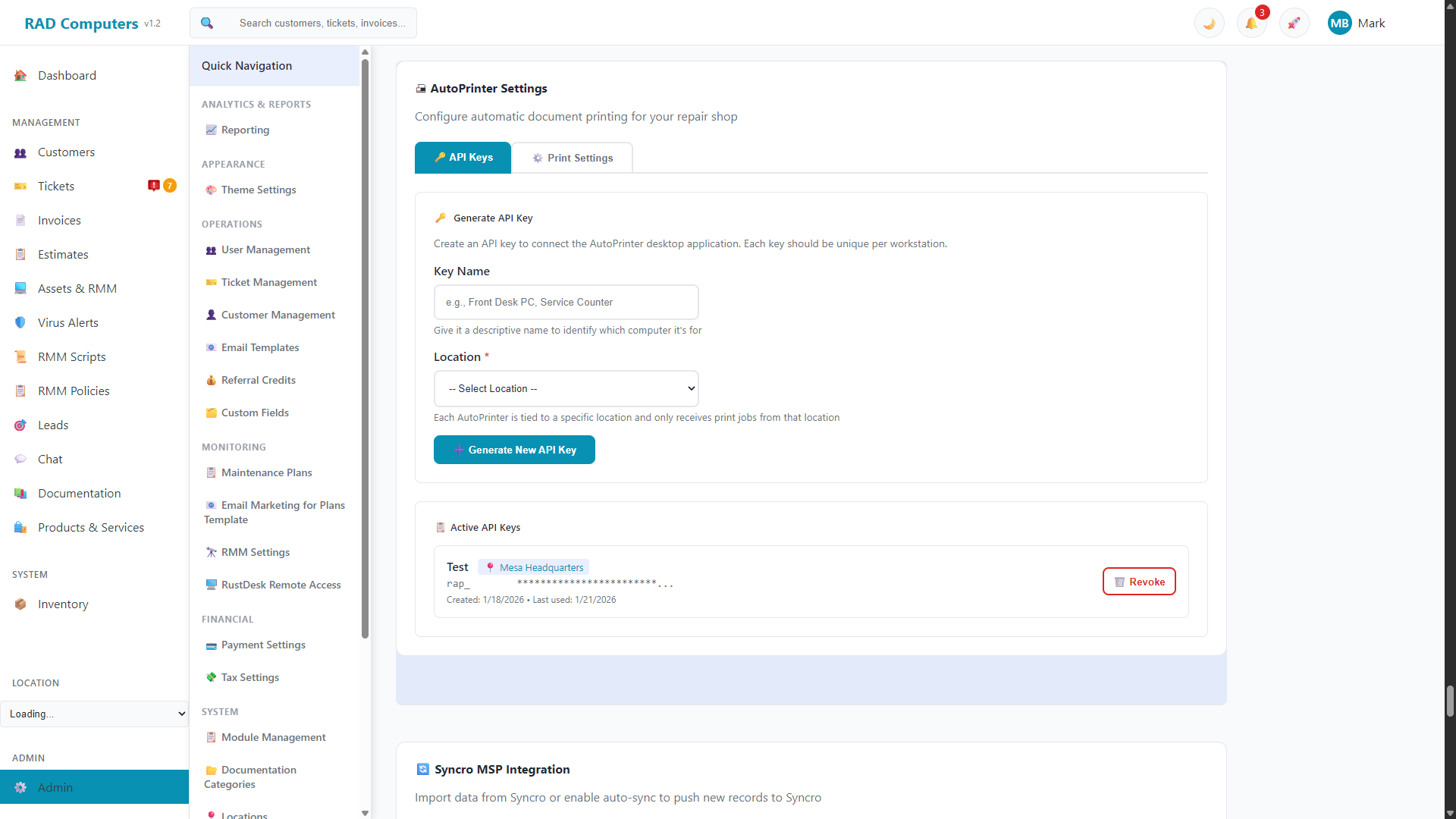
The AutoPrinter settings panel allows you to manage API keys and configure print triggers
Overview
RAD AutoPrinter is a companion desktop application that runs on your Windows computer and automatically prints documents when they are created in RAD Repairs. This eliminates the need to manually print intake forms, receipts, and estimates, saving time and ensuring consistent documentation for every repair job.
Automatic Printing
Documents print instantly when created - no manual intervention required.
Configurable Triggers
Choose exactly which documents should auto-print based on your workflow.
Multi-Location Support
Each location can have its own AutoPrinter with location-specific settings.
What is AutoPrinter?
AutoPrinter is a lightweight Windows desktop application that connects to your RAD Repairs account and listens for print jobs. When a trigger event occurs (such as creating a new ticket), the server sends the document to AutoPrinter, which then prints it on your selected printer.
Key Features
- Real-time printing - Documents print within seconds of being created
- Runs in background - Minimizes to system tray and uses minimal resources
- Automatic reconnection - Reconnects automatically if the connection is interrupted
- Print queue - If AutoPrinter is offline, jobs queue and print when it reconnects
- Multiple copies - Configure how many copies of each document type to print
- Printer selection - Choose any Windows-compatible printer
Windows Only: AutoPrinter is currently available for Windows 10 and later (64-bit). Mac and Linux versions are not currently available.
Downloading AutoPrinter
You can download the AutoPrinter installer directly from within RAD Repairs.
Open the AutoPrinter App Page
Log into RAD Repairs, open the App Center from the sidebar, and click AutoPrinter. (AutoPrinter API keys and print settings are also available from Admin Settings.)
Go to the Download Tab
Click the Download tab on the AutoPrinter page.
Download the Installer
Click the Download Installer button to download the Windows installer.
Installation and Setup
Installing AutoPrinter is straightforward. Follow these steps to get up and running:
Run the Installer
Double-click the downloaded RAD-AutoPrinter-Setup.exe file. If Windows SmartScreen appears, click "More info" and then "Run anyway".
Complete Installation Wizard
Follow the on-screen prompts. Accept the default installation location or choose a custom folder. The installer will create desktop and Start Menu shortcuts.
Generate an API Key
In RAD Repairs, open the AutoPrinter page and go to the API Keys tab. Select the location this workstation belongs to, give the key a descriptive name (e.g., "Front Desk PC"), and click Generate New API Key. Copy the key immediately - it is only shown once. Each key should be unique per workstation.
Configure AutoPrinter
Launch AutoPrinter and enter your server URL (e.g., https://app.radrepairs.com) and paste the API key you generated. Click "Connect" to establish the connection.
Select Your Printer
Go to the Settings tab in AutoPrinter and select your preferred printer from the dropdown list. This is the printer that will receive all automatic print jobs.
Tip: Enable "Start with Windows" in AutoPrinter settings to ensure it runs automatically when your computer starts.
Configuring Auto-Print Options
The Print Settings tab of the AutoPrinter page controls which documents automatically print when created, and how many copies. These are the default settings for the selected location - users can override them in the AutoPrinter desktop app.
Auto-Print Options
Enable auto-printing per document type, each with its own copy count (1-10):
- Invoices - Print invoices automatically when they are created
- Tickets - Print tickets automatically when they are created, useful for attaching to the customer's device or getting authorization signatures
- Estimates - Print estimates automatically when they are created
Exclusions
Exclude certain documents from auto-printing:
- RMM Alert Tickets - Don't auto-print tickets created from RMM alerts (automated monitoring)
- Zero-Balance Invoices - Don't auto-print invoices with a $0.00 total
- Draft Estimates - Only print estimates when marked as sent/approved, not drafts
Auto-save: Print settings save automatically as you change them - watch for the "Auto-saved" indicator.
Printer Selection
AutoPrinter can use any printer installed on your Windows computer. To select a printer:
- Open AutoPrinter and go to the Settings tab
- Find the Printer dropdown menu
- Select your desired printer from the list
- Click Save Settings to apply
Supported Printers
AutoPrinter works with:
- Standard inkjet and laser printers
- Thermal receipt printers (with Windows drivers)
- Network printers
- USB-connected printers
- PDF printers (for testing purposes)
Print Copies
You can configure how many copies of each document type to print (1 to 10):
| Document Type | Default Copies | Typical Use Case |
|---|---|---|
| Ticket | 1 | Attach to device |
| Invoice | 1 | Customer copy (increase to 2 for a shop copy) |
| Estimate | 1 | Customer approval signature |
Set the copy counts on the Print Settings tab in RAD Repairs; each AutoPrinter installation can also override the copy counts locally in the desktop app's settings.
Troubleshooting Common Issues
AutoPrinter shows "Disconnected"
Check that your API key is valid and has not been revoked. Verify the server URL is correct (include https://). Ensure your computer has an active internet connection. Try clicking "Reconnect" or restart the application.
Documents are not printing
Verify that the appropriate print trigger is enabled for the document type. Check that a printer is selected in Settings. Ensure the printer is online, has paper, and is not showing errors. Check the print queue in AutoPrinter for failed jobs.
Windows SmartScreen blocks installation
The AutoPrinter installer may trigger SmartScreen because it is not code-signed. Click "More info" then "Run anyway" to proceed. This is safe - the application is developed by RAD Repairs.
Printer not appearing in the dropdown
Only printers with installed Windows drivers appear in the list. Install the printer drivers from the manufacturer's website. Restart AutoPrinter after installing new printer drivers.
Print jobs are delayed
Check your internet connection speed. If AutoPrinter was offline, jobs may have queued and are printing in order. Large documents (like multi-page estimates) may take longer to process.
Print Queue and Diagnostics
The AutoPrinter window shows the connection status and a print queue where each job moves through Pending, Downloading, Printing, and then Completed or Failed. Failed jobs can be retried. Check the queue first when diagnosing printing issues, and include what you see there when contacting support.
FAQ
Can I install AutoPrinter on multiple computers?
Yes. Generate a separate API key for each computer and assign each to the appropriate location. Each computer can have its own printer and trigger settings.
Does AutoPrinter work with multiple locations?
Yes. When generating an API key, select the location. AutoPrinter will only receive print jobs for documents created at that location, ensuring the right printer at the right location receives each job.
What happens if AutoPrinter is not running?
Print jobs are queued on the server. When AutoPrinter reconnects, all pending jobs are sent and printed in order.
Can I print to different printers for different document types?
Currently, AutoPrinter uses a single default printer for all document types. Support for printer routing by document type is planned for a future update.
How do I update AutoPrinter?
Download the latest installer and run it. The installer will update your existing installation while preserving your settings and API key configuration.
Is AutoPrinter available for Mac?
Currently, AutoPrinter is only available for Windows 10 and later (64-bit). A Mac version may be developed in the future based on customer demand.
Need Help with AutoPrinter?
If you are experiencing issues with AutoPrinter or need assistance with configuration, our support team is here to help.
Contact Support