Theme Settings
Customize the look and feel of your RAD Repairs dashboard. Choose a theme mode, set your company-wide accent color, and upload your logo and favicon - all changes save automatically.
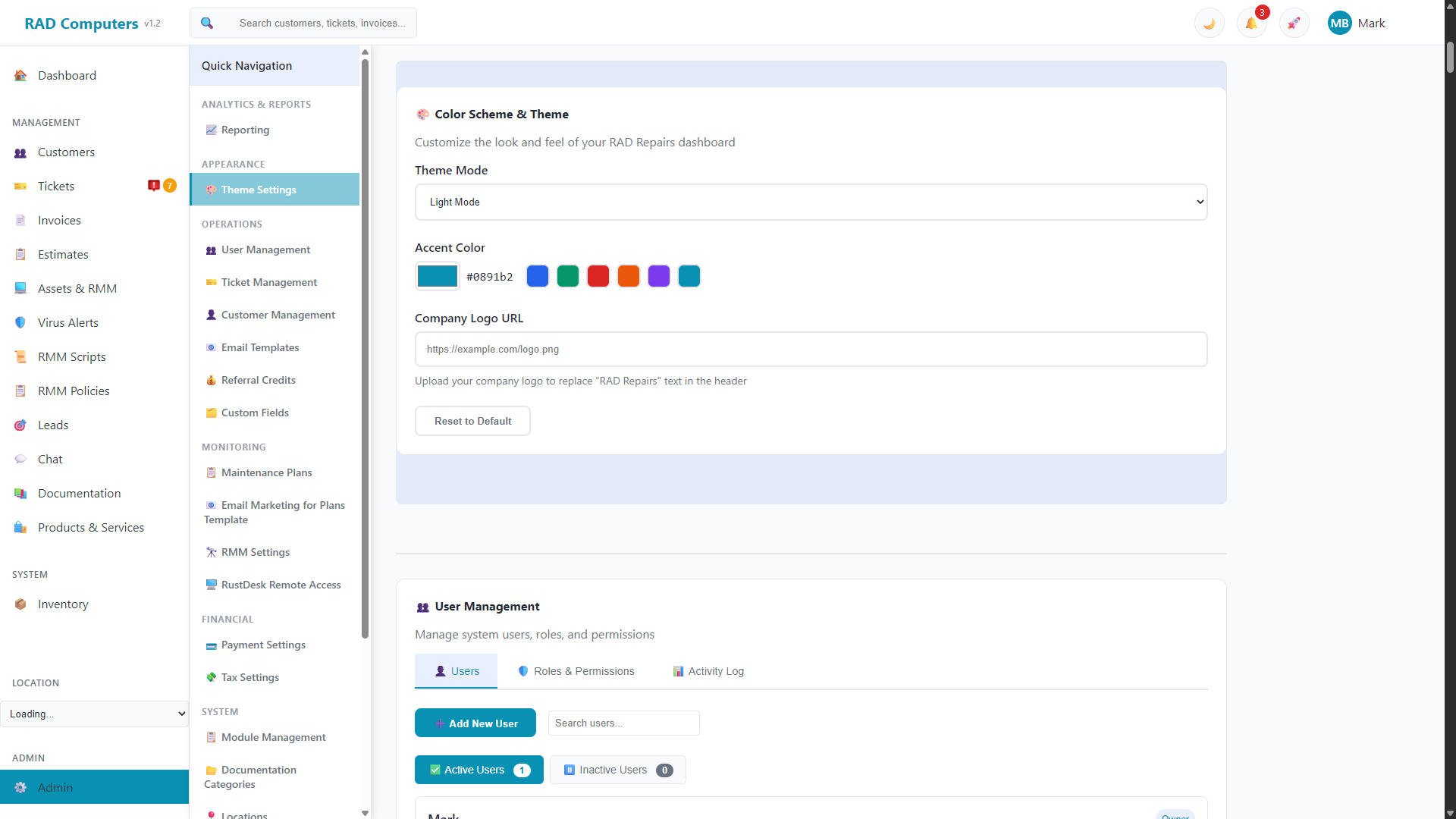
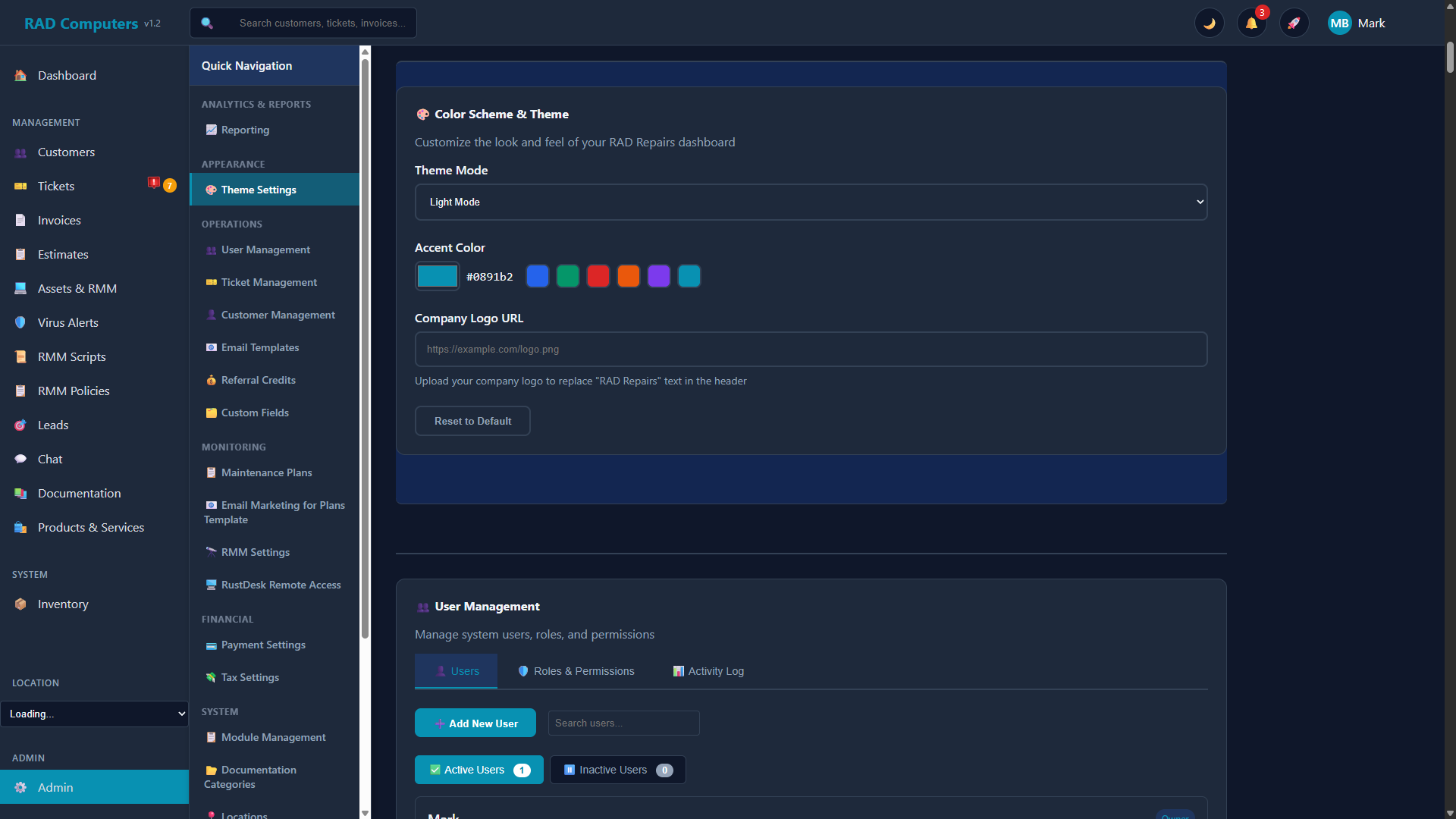
The Theme Settings panel allows you to customize your brand appearance across the entire application
Overview
The Color Scheme & Theme panel in Admin Settings lets you personalize RAD Repairs. It contains three things:
- Theme Mode - Light, Dark, or Auto (follows the operating system)
- Accent Color - Company-wide branding color used for buttons, links, and highlights
- Company Branding - Your logo (shown in the header on every page and on printed documents) and favicon (browser tab icon)
Auto-save: There is no save button - changes apply immediately and an "Auto-saved" indicator appears in the corner of the panel when a change is stored.
Accent Color
The accent color is used throughout the application for buttons, links, highlights, and accent elements. It is company-wide branding: when an owner or admin changes it, it applies to all users on your account.
Open the Color Picker
Click the color swatch next to "Accent Color" to open the color picker. The current hex value is shown beside it.
Select Your Color
Pick any color, or click one of the presets: RAD Blue (the default), Success Green, Alert Red, Warning Orange, Purple, or Cyan.
Done
The color applies immediately and is saved automatically for everyone on your account.
Accessibility Note: When selecting an accent color, ensure it provides sufficient contrast against white text. Very light colors may make button labels difficult to read.
Logo Upload and Configuration
Upload your company logo to display in the application header on every page and on printed documents.
Supported Formats
- PNG - Recommended for logos with transparency
- JPG/JPEG - Suitable for photographic logos
- SVG - Vector format for crisp display at any size
- GIF - Supported but not recommended
Requirements
- File Size: Maximum 2MB
- Recommended Width: At least 200px for best quality
Upload Steps
Upload Logo
Click the logo upload area or drag and drop your logo file. The preview will update immediately.
Review Preview
Check the preview to ensure your logo looks correct. Logos are automatically scaled to fit.
Done
Your logo is saved automatically and will appear in the header and on printed documents (invoices, estimates, tickets, reports).
Recommended Dimensions: For best results, use a logo that is at least 200px wide. Higher resolution images will appear sharper on high-DPI displays and in printed documents.
Welcome Wizard: You can also upload your logo during initial setup in the Welcome Wizard, and change it here at any time.
Favicon Settings
The favicon is the small icon that appears in browser tabs and bookmarks. A custom favicon helps reinforce your brand identity.
Favicon Requirements
- Format: PNG or ICO recommended
- Size: Up to 512x512 pixels (larger sizes provide better quality on high-resolution displays)
- Shape: Square images work best
Upload Favicon
Click or drag-and-drop your icon file into the favicon upload area. The preview will update immediately.
Preview
The preview shows how your favicon will appear in browser tabs. Ensure it is recognizable at small sizes.
Welcome Wizard: You can also upload your favicon during initial setup in the Welcome Wizard, and change it here at any time.
Theme Mode
RAD Repairs supports both light and dark display modes. The Theme Mode dropdown sets your own display preference:
Available Options
- Light Mode - Traditional light background with dark text
- Dark Mode - Dark background with light text, easier on the eyes in low-light environments
- Auto (System) - Automatically matches your operating system preference
Per-user preference: Theme mode is saved per user, so each team member can pick their own. Users can also toggle between light and dark mode at any time using the theme button in the application header. The accent color, by contrast, is shared by everyone.
Resetting to Defaults
Click Reset to Default at the bottom of the panel to restore the original theme settings, including the default RAD Blue accent color.
Frequently Asked Questions
How long does it take for theme changes to apply?
Changes are auto-saved and applied immediately on your screen. Other users will see the new accent color and logo on their next page load or refresh. Some browsers may cache old styles briefly, but a hard refresh (Ctrl+F5 or Cmd+Shift+R) will load the new theme immediately.
Can I use different themes for different locations?
No. The accent color, logo, and favicon apply account-wide - all locations share the same branding. Theme mode (light/dark), however, is a personal preference each user sets for themselves.
What happens to my logo if I change the accent color?
Your uploaded logo remains unchanged when you modify the accent color. The accent color only affects UI elements like buttons, links, and highlights - not your uploaded logo images.
How do I remove my custom logo and use the default?
Click the Remove button on the logo preview in the Company Branding section. This reverts to displaying your company name in text form in the header.
Why does my logo look blurry?
Blurry logos are typically caused by uploading an image that is too small. For best results, upload a logo that is at least 200px wide. SVG format is recommended for crisp display at any size.
Can users choose their own theme colors?
Users can choose their own theme mode (light, dark, or auto), but the accent color is set by owners and admins and applies to all users. This ensures consistent branding across your organization.
Will theme changes affect printed documents?
Your uploaded logo appears on printed documents such as invoices and estimates, as well as in the application header on every page.
Need Help with Theme Customization?
If you need assistance with branding or have questions about theme options, our support team is here to help.
Contact Support