User Management
Manage your team's access to RAD Repairs by creating user accounts, assigning roles with specific permissions, and configuring security settings like two-factor authentication.
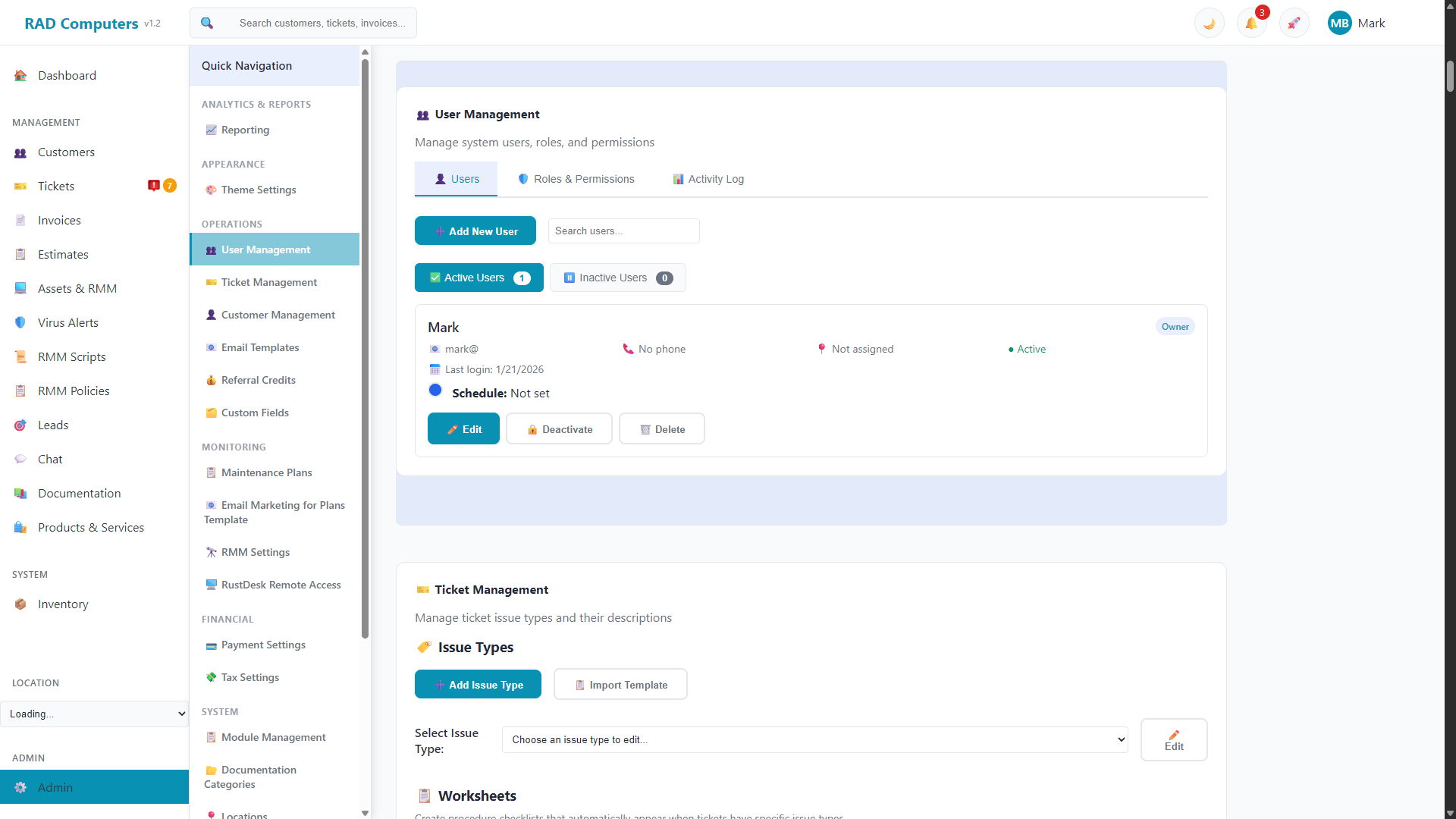
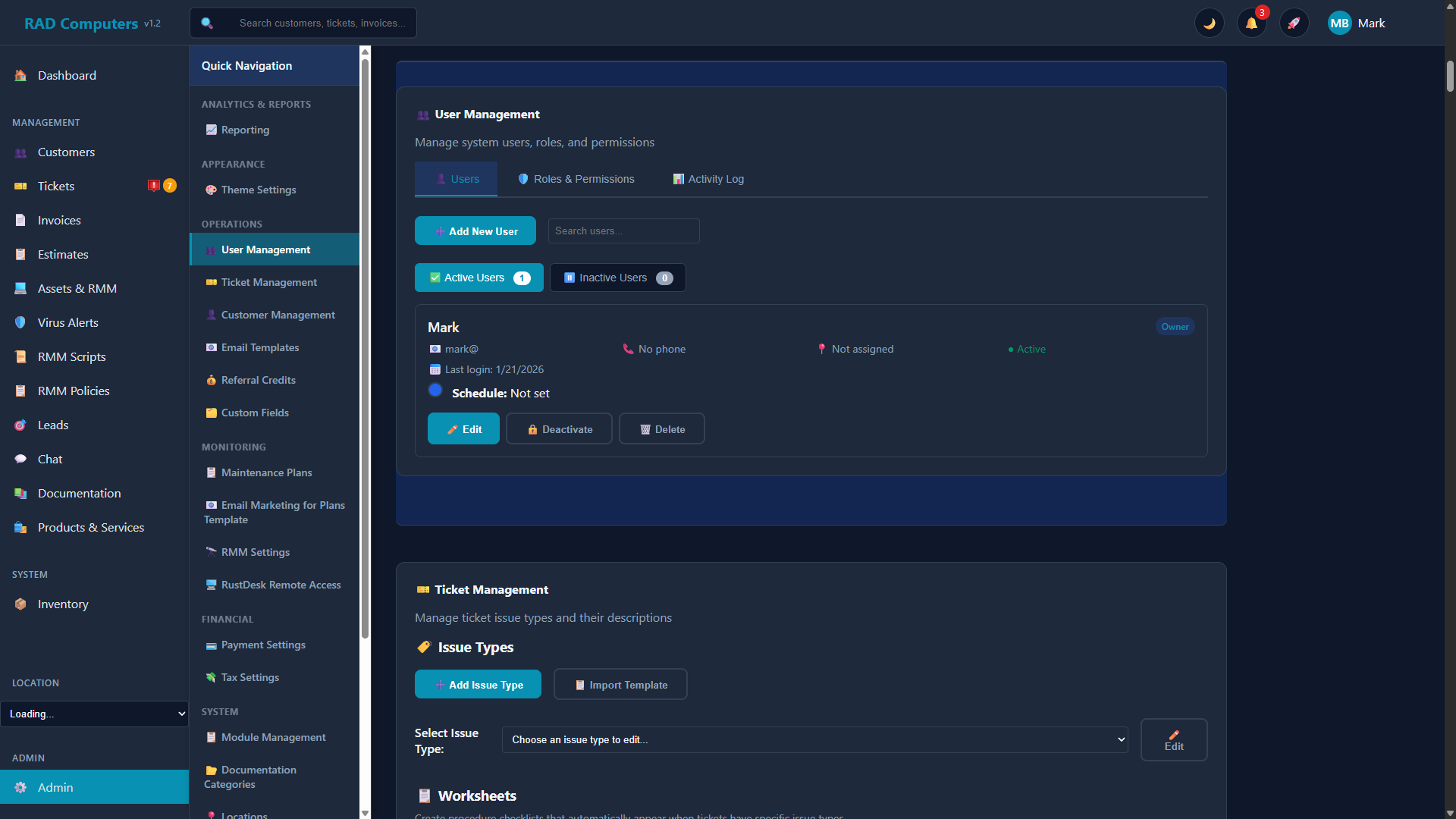
The User Management interface showing the list of users and their roles
Overview
The User Management section allows administrators to control who has access to the RAD Repairs system and what they can do within it. Each user is assigned a role that determines their permissions throughout the application.
The section has three tabs - Users, Roles & Permissions, and Activity Log. Key capabilities include:
- User Account Creation - Add new team members; a temporary password is generated and emailed automatically
- Role Assignment - Assign appropriate access levels based on job responsibilities, with custom roles and granular permissions
- Location Assignments - Limit users to specific shop locations, or grant "All Locations" access
- Security Controls - Set up two-factor authentication per user and change passwords
- Account Management - Edit, deactivate, or delete user accounts as needed
- Activity Log - Review logins, user changes, role changes, and permission changes
User Roles and Permissions
RAD Repairs uses a role-based access control system. Each user is assigned a role, and that role determines their permissions throughout the application. The system includes four built-in roles and supports creating custom roles with any combination of permissions.
Owner and Admin users automatically bypass all permission checks and have full access to the system. For other roles, permissions are enforced on every API request. If a user tries to access something they don't have permission for, they'll see a notification: "You don't have permission to do that."
Default Permission Matrix
The table below shows the default permissions for the four built-in roles. Admins and Owners can customize the Admin, Technician, and Accounting roles, and can also create entirely new custom roles.
| Permission | Owner | Admin | Technician | Accounting |
|---|---|---|---|---|
| Dashboard | ||||
| View Dashboard | Yes | Yes | Yes | Yes |
| Customers | ||||
| View Customers | Yes | Yes | Yes | Yes |
| Create Customers | Yes | Yes | Yes | No |
| Edit Customers | Yes | Yes | Yes | No |
| Delete Customers | Yes | Yes | No | No |
| Tickets | ||||
| View Tickets | Yes | Yes | Yes | No |
| Create Tickets | Yes | Yes | Yes | No |
| Edit Tickets | Yes | Yes | Yes | No |
| Delete Tickets | Yes | Yes | No | No |
| Assign Tickets | Yes | Yes | No | No |
| Customer Credentials | ||||
| View Credentials | Yes | Yes | Yes | No |
| Edit Credentials | Yes | Yes | Yes | No |
| Delete Credentials | Yes | Yes | No | No |
| Invoices | ||||
| View Invoices | Yes | Yes | Yes | Yes |
| Create Invoices | Yes | Yes | Yes | Yes |
| Edit Invoices | Yes | Yes | Yes | Yes |
| Delete Invoices | Yes | No | No | No |
| Send Invoices | Yes | Yes | Yes | Yes |
| Estimates | ||||
| View Estimates | Yes | Yes | Yes | Yes |
| Create Estimates | Yes | Yes | Yes | Yes |
| Edit Estimates | Yes | Yes | Yes | Yes |
| Delete Estimates | Yes | Yes | No | No |
| Inventory & Products | ||||
| View Inventory | Yes | Yes | Yes | Yes |
| Manage Inventory | Yes | Yes | No | No |
| View Products/Services | Yes | Yes | Yes | Yes |
| Create Products/Services | Yes | Yes | No | No |
| Edit Products/Services | Yes | Yes | No | No |
| Delete Products/Services | Yes | Yes | No | No |
| Reporting | ||||
| View Reports | Yes | Yes | Yes | Yes |
| Create Reports | Yes | Yes | No | No |
| Export Reports | Yes | Yes | No | No |
| Documentation | ||||
| View Documentation | Yes | Yes | Yes | Yes |
| Edit Documentation | Yes | Yes | No | No |
| User Management | ||||
| View Users | Yes | Yes | No | No |
| Manage Roles & Permissions | Yes | Yes | No | No |
| Admin Settings | ||||
| View Admin Settings | Yes | Yes | No | No |
| Edit Admin Settings | Yes | Yes | No | No |
| System Settings | Yes | Yes | No | No |
Built-in Role Descriptions:
- Owner - Full system access. This role cannot be modified or deleted.
- Admin - Access to all features except deleting invoices. Permissions can be customized.
- Technician - Access to ticket work, customer management (create/edit but not delete), customer credentials, invoices, estimates, and reports; products, services, and inventory are view-only. Cannot access admin settings. Permissions can be customized.
- Accounting - Financial access: invoices, estimates, reports, plus view-only customers, products, and inventory. Cannot manage tickets or access admin settings. Permissions can be customized.
Custom Roles
In addition to the four built-in roles, you can create custom roles with any combination of permissions to match your team's specific needs.
Creating a Custom Role
- Go to Admin Settings > User Management
- Switch to the Roles & Permissions tab
- Click "Create New Role"
- Enter a role name (e.g., "Senior Technician") and an optional description
- Check the permissions this role should have. Permissions are grouped by area: Dashboard, Customer Management, Customer Credentials, Ticket Management, Invoice Management, Estimates, Inventory, Products & Services, Reporting, User Management, Documentation, Admin Settings, and App Center
- Click "Create Role" to save
A Reset Default Roles button on the Roles & Permissions tab restores the built-in roles to their standard permissions.
Editing a Role
To change the permissions for an existing role (except Owner):
- Navigate to the Roles & Permissions tab
- Click the Edit button on the role you want to modify
- Update the name, description, or permissions as needed
- Click "Update Role" to save
Important: When you change a role's permissions, the update is applied immediately to all users who have that role. Affected users may need to refresh their browser to see the changes.
Deleting a Custom Role
Custom roles can be deleted if no active users are assigned to them. Built-in system roles (Owner, Admin, Technician, Accounting) cannot be deleted.
- First reassign any users on the role to a different role
- Navigate to the Roles & Permissions tab
- Click the Delete button on the custom role
- Confirm the deletion
Adding a New User
To add a new team member to your RAD Repairs account, follow these steps:
Navigate to User Management
Go to Admin Settings and click on "User Management" in the settings menu.
Click "Add New User"
On the Users tab, click the "Add New User" button above the user list.
Enter User Details
Fill in the required fields: First Name, Last Name, Email Address, Role, and Location. You can also add a phone number, pick a schedule color, and enter a work schedule.
Save User
Click Save to create the account. A temporary password is generated automatically and a welcome email with their login credentials is sent to the user.
First Login
On their first login, the user is required to choose a new password (and, when applicable, set up two-factor authentication) before they can use the system.
Need to give someone access to more locations? The Add New User form assigns a single location. After creating the user, click Edit to open the Location Assignments checkboxes, where you can select multiple locations or "All Locations".
Editing User Profiles
To modify an existing user's profile:
- Locate the user in the user list (use the search box or the Active/Inactive sub-tabs)
- Click the Edit button on their user card
- Update the desired fields: name, email, phone, role, location assignments, schedule color, hourly rate, work schedule, or active status. This is also where you set up the user's two-factor authentication and change their password
- Click Save Changes to apply the updates
Important: Changing a user's role takes effect immediately. The user's permissions are automatically updated to match their new role. They may need to refresh their browser to see the changes.
Resetting Passwords
Administrators can set a new password for any user from the Edit User dialog:
- Click the Edit button on the user's card
- In the password change section, enter and confirm a new password
- Save changes and communicate the new password to the user securely
Deactivating User Accounts
When a team member leaves or needs their access revoked, you can deactivate their account without deleting their data:
- Find the user in the user list
- Click the Deactivate button on their user card
- The user moves to the Inactive Users sub-tab and can no longer log in
Tip: Deactivating an account is reversible. The user's data, including their ticket history and time logs, is preserved. You can re-enable the account at any time by clicking Activate on their card in the Inactive Users list. The Owner account cannot be deactivated.
Deleting Users: Permanently deleting a user account cannot be undone. Only delete accounts if you are certain you no longer need them - deactivating is usually the safer choice. The Owner account cannot be deleted.
Location Assignments
If your business operates multiple locations, you can assign users to one or more locations. This affects what data they can see and work with.
Multi-Location Assignment
Users can be assigned to multiple locations using the checkbox selection in the user edit dialog:
- Edit the user's profile
- In the "Location Assignments" section, you'll see a list of all locations as checkboxes
- Check the box next to each location the user should have access to
- Use the "All Locations" checkbox to quickly grant access to all locations at once
- Save changes
All Locations Option
The "All Locations" option is ideal for:
- Float Technicians - Staff who rotate between different shop locations
- Mobile Technicians - Field techs who service customers at any location
- Admins / Managers - Those who oversee operations across multiple sites
- Owner - Users who need full visibility across the organization
- Bookkeepers / Accountants - Users who need financial visibility across the organization
Tip: Selecting "All Locations" automatically checks all location boxes. Unchecking any individual location will automatically uncheck "All Locations" as well.
Location Restrictions
When a user is assigned to specific locations (not "All Locations"), their day-to-day view of the system is scoped to those locations, and they can switch between their assigned locations using the location selector in the main sidebar.
Two-Factor Authentication
Two-factor authentication (2FA) adds an extra layer of security to user accounts by requiring a 6-digit code from an authenticator app in addition to the password at every login. RAD Repairs uses TOTP (Time-based One-Time Passwords) - compatible with Google Authenticator, Authy, Microsoft Authenticator, and similar apps.
Setting Up 2FA for a User
2FA is configured per user from the Edit User dialog:
- Click Edit on the user's card
- Find the Two-Factor Authentication section, which shows whether 2FA is currently enabled
- Click Set Up 2FA
- Scan the QR code with the authenticator app on the user's phone
- Enter the 6-digit verification code and click Enable 2FA
Lost authenticator? If a user loses access to their authenticator app, an administrator can disable 2FA for them from the same section so they can log in and set it up again with a new device.
Frequently Asked Questions
How many users can I add to my account?
There is no fixed user limit - your subscription is billed per location, not per user, so add as many team members as your business needs.
Can I create custom roles with specific permissions?
Yes. Navigate to Admin Settings > User Management > Roles & Permissions to create custom roles with any combination of the 40+ available permissions. You can also customize the built-in Admin, Technician, and Accounting roles.
What happens when a user forgets their password?
An administrator can set a new password for them from the Edit User dialog in User Management, then share it securely.
Can a user have multiple roles?
No, each user can only have one role at a time. If a user needs combined permissions, create a custom role with exactly the permissions they need, or assign them the higher-level role.
Do Owner and Admin users need permissions checked?
No. Owner and Admin users automatically have full access - permission checkboxes only matter for Technician, Accounting, and custom roles.
Can I see what actions a user has performed?
Yes. The Activity Log tab in User Management shows a history of logins, user changes, role changes, and permission changes, filterable by type and date.
Need Help with User Management?
If you have questions about user roles, permissions, or account setup, our support team is here to assist you.
Contact Support