Referral Credit Settings
Configure your referral program to reward customers who bring in new business. Referral credits are an effective way to encourage word-of-mouth marketing and build customer loyalty.
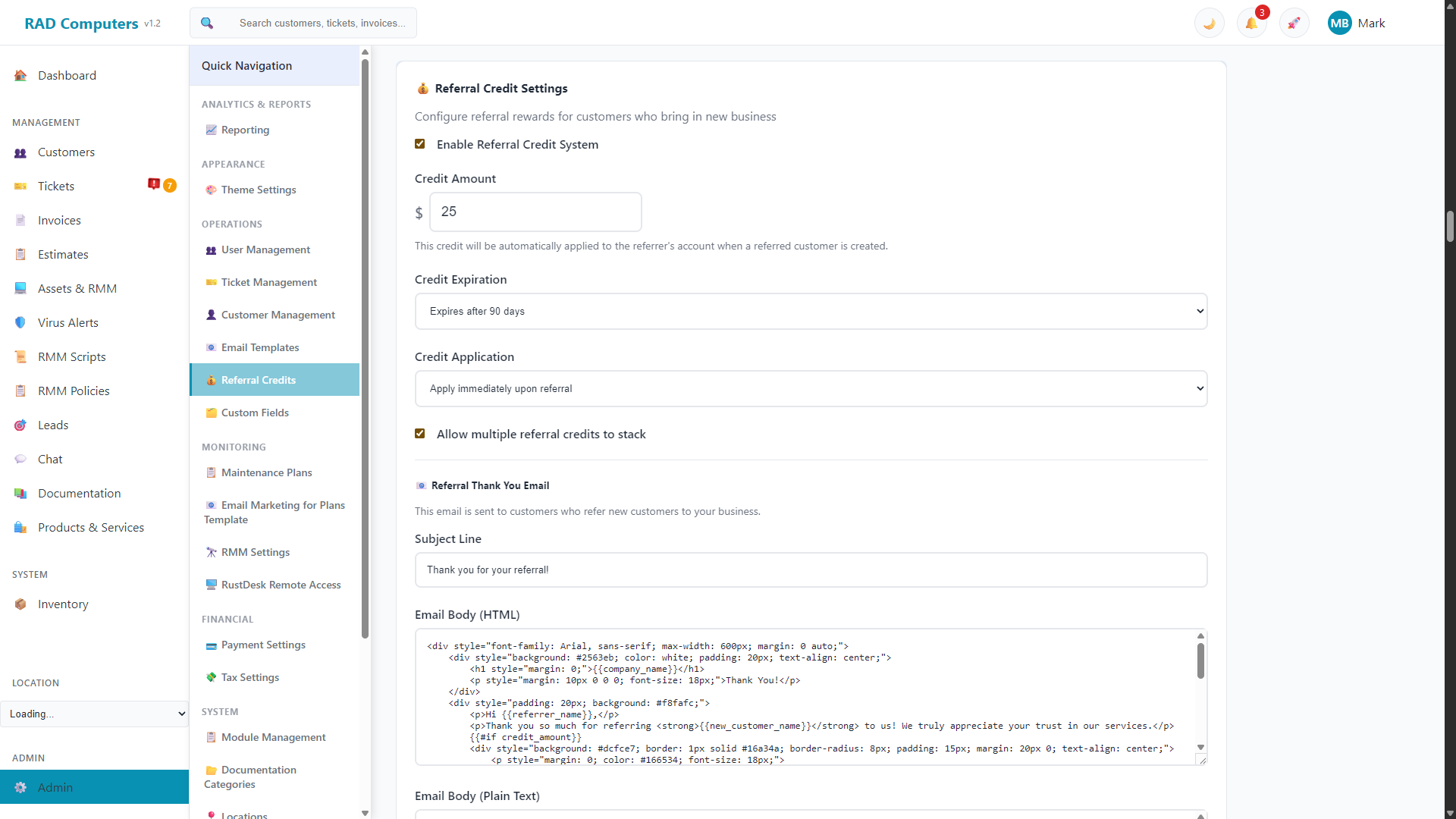
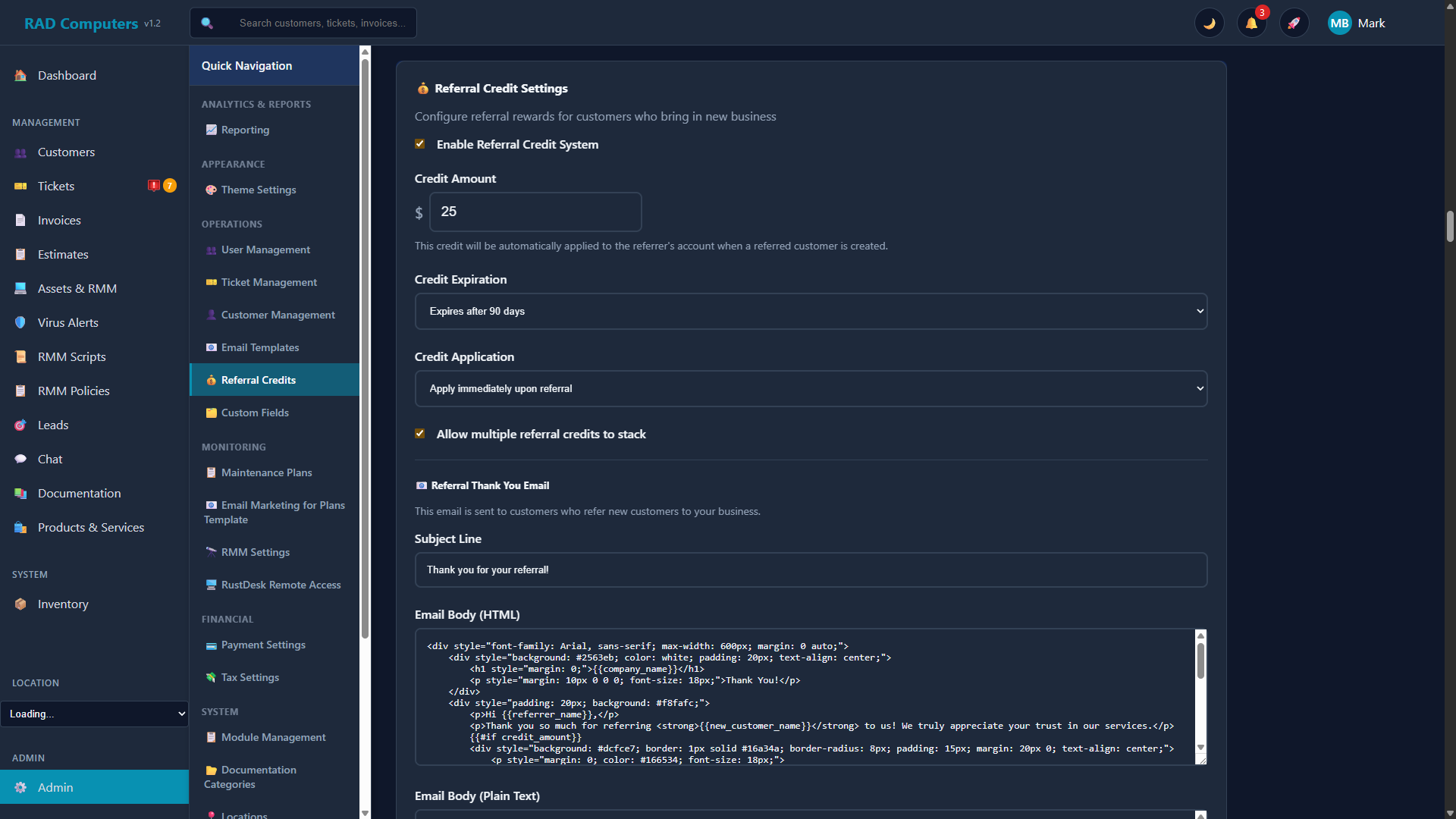
Configure referral program settings including credit amounts and notification preferences
Overview of the Referral Program
The RAD Repairs referral program rewards your existing customers when they refer new customers to your shop. When a new customer is created and an existing customer is selected as the referrer, the referring customer automatically receives store credit that can be applied to future services.
Automatic Credits
Store credit is added to the referrer automatically - no manual bookkeeping.
Flexible Amounts
Set any credit amount that works for your business model and margins.
Thank You Emails
Automatically send a customizable thank-you email when customers earn referral credits.
Referral Analytics
See performance by referral source in the Referral Analytics report.
How Referral Credits Work
The referral credit system is designed to be simple and automatic. Here is how the process works:
An existing customer tells a friend or family member about your repair shop. When you create the new customer - using either the Quick Add Customer form or the full Add Customer form on the Customers page - choose Friend / Family Member or Previous Customer in the "How did you hear about us?" field.
A search box appears - type the referring customer's name and select them. A green indicator confirms that referral credit is enabled and will be awarded.
The referring customer automatically receives the configured credit amount as store credit. By default this happens immediately when the referred customer is created; you can instead configure it to apply when the referred customer receives their first invoice or makes their first payment.
The referring customer receives the customizable Referral Thank You email letting them know they earned a credit and thanking them for their recommendation.
Once configured, the referral program runs automatically. Credits are applied without staff needing to remember or manually add them.
Setting the Credit Amount Per Referral
The referral credit amount should be set based on your average ticket value, profit margins, and what will motivate customers to make referrals.
How to Configure the Credit Amount
- Navigate to Admin Settings from the main menu
- Click on Referral Credits in the settings menu
- Locate the Credit Amount field (the default is $25.00)
- Enter your desired amount (e.g., $10.00, $25.00, $50.00)
- Click Save All Settings to apply the change
Other Referral Credit Options
- Credit Expiration - Never, or 30 / 60 / 90 / 180 days / 1 year (default: 90 days)
- Credit Application - When the credit is awarded: immediately upon referral (default), when the referred customer gets their first invoice, or when they make their first payment
- Allow multiple referral credits to stack - Whether a customer can accumulate credits from multiple referrals
A Reset to Defaults button restores the standard settings at any time.
Recommended Credit Amounts
| Average Ticket Value | Suggested Credit | Reasoning |
|---|---|---|
| Under $100 | $5 - $10 | Meaningful but proportional to service value |
| $100 - $250 | $10 - $25 | Good incentive without significant margin impact |
| $250 - $500 | $25 - $50 | Strong incentive for higher-value referrals |
| Over $500 | $50 - $100 | Premium reward for high-value customer referrals |
A new customer referred to your shop often becomes a repeat customer. Consider the long-term value when setting your referral credit amount, not just the single transaction.
Enabling or Disabling the Referral Program
You have full control over when the referral program is active. You can enable or disable it at any time without losing existing credit balances.
To Enable the Referral Program
- Go to Admin Settings then Referral Credits
- Check Enable Referral Credit System
- Configure the credit amount, expiration, and application options if not already set
- Click Save All Settings
To Disable the Referral Program
- Go to Admin Settings then Referral Credits
- Uncheck Enable Referral Credit System
- Click Save All Settings
When you disable the referral program, no new credits will be earned, but customers keep any credits they have already earned. These credits can still be applied to invoices.
Tracking Referrals
RAD Repairs tracks referral activity so you can see who referred whom and how credits have been earned and used.
Viewing Referral Information
There are several places to view referral data:
- Customer Profile - Shows the customer's referral source and who referred them
- Store Credit / Payment History - Referral credits appear in the customer's store credit ledger and payment history
- Referral Analytics Report - Performance by referral source (see below)
Applying Credits to Invoices
Referral credits become part of the customer's store credit balance, which can be used to pay invoices.
How to Apply Credits During Invoicing
Open the invoice and start taking a payment as usual.
Select Store Credit as the payment method. The customer's available store credit balance is displayed.
Apply the full balance or any smaller amount, up to the invoice balance. The amount used is deducted from the customer's store credit.
If the customer has enough credit, it can cover the entire invoice amount and the invoice is marked as Paid. Recurring invoices can also be set to apply store credit automatically.
Referral Thank You Email
When a customer earns a referral credit, RAD Repairs sends them a thank-you email. The email is fully customizable right inside the Referral Credit Settings section - no separate template page needed.
What You Can Customize
- Subject Line - e.g., "Thank you for your referral!"
- Email Body - Edited visually, like a document: click into the text and type, use the toolbar for bold/italic/lists/links, and use the Insert Variable dropdown to add placeholders by friendly name. An </> Edit HTML toggle is available for advanced users
- Email Body (Plain Text) - The fallback text version
A live preview shows how the email will look, and an Open Full Preview button displays the complete rendered email.
Available Variables
| Variable | Description |
|---|---|
{{referrer_name}} |
The referring customer's name |
{{new_customer_name}} |
The name of the person they referred |
{{credit_amount}} |
The amount of credit earned |
{{credit_expiry_days}} |
How many days until the credit expires |
{{company_name}} |
Your company name |
{{location_name}} |
The location the customer was created at |
You can also use conditional blocks: {{#if credit_amount}}...{{/if}} shows its content only when a credit is actually awarded.
A well-written thank-you email not only thanks the customer but also encourages them to continue making referrals. Consider including a call-to-action in your template.
Viewing Referral Analytics
The Referral Analytics report provides insights into where your customers come from and how referral sources perform.
Accessing the Report
- Go to Admin Settings > Reporting
- Click Referral Analytics
- The report is generated for your configured report period and can be previewed, printed, or downloaded
Report Metrics
The Referral Analytics report includes:
- Performance by Referral Source - Customers, invoices, revenue, and conversion rate for each referral source (Google, Facebook, Friend/Family, Previous Customer, etc.)
- New Customers by Source - How many new customers each source brought in during the period
Frequently Asked Questions
Can a customer earn multiple referral credits?
Yes, as long as Allow multiple referral credits to stack is enabled in the settings. Each successful referral earns them another credit.
Do referral credits expire?
By default, referral credits expire after 90 days. You can change the expiration in the settings to 30, 60, 90, or 180 days, 1 year, or never.
Can I manually add store credit?
Yes. Staff can adjust a customer's store credit from the customer's profile - for example, to add a missed referral credit or correct one awarded in error. All adjustments show in the customer's payment history.
What if the referred customer was already in the system?
Referral credits are only awarded when a new customer is created with a referrer selected. Editing an existing customer to add a referrer does not trigger a credit.
Can I change the credit amount after the program is running?
Yes, you can change the credit amount at any time. The new amount applies to future referrals only. Credits already earned are not affected by changes to the amount.
Can the referred customer also get a discount?
The built-in referral program rewards the referrer. To offer a discount to new referred customers, you can manually apply a discount to their first invoice.
Are referral credits taxable?
Referral credits function like store credit applied against an invoice. Consult with your accountant regarding the tax treatment in your jurisdiction.
Need Help with Referral Settings?
If you have questions about configuring your referral program or need assistance with credit management, our support team is here to help.
Contact Support