Email Templates
Customize automated email notifications to match your brand and communication style. Email templates allow you to personalize the messages sent to customers when tickets are created, statuses change, invoices are sent, and more.
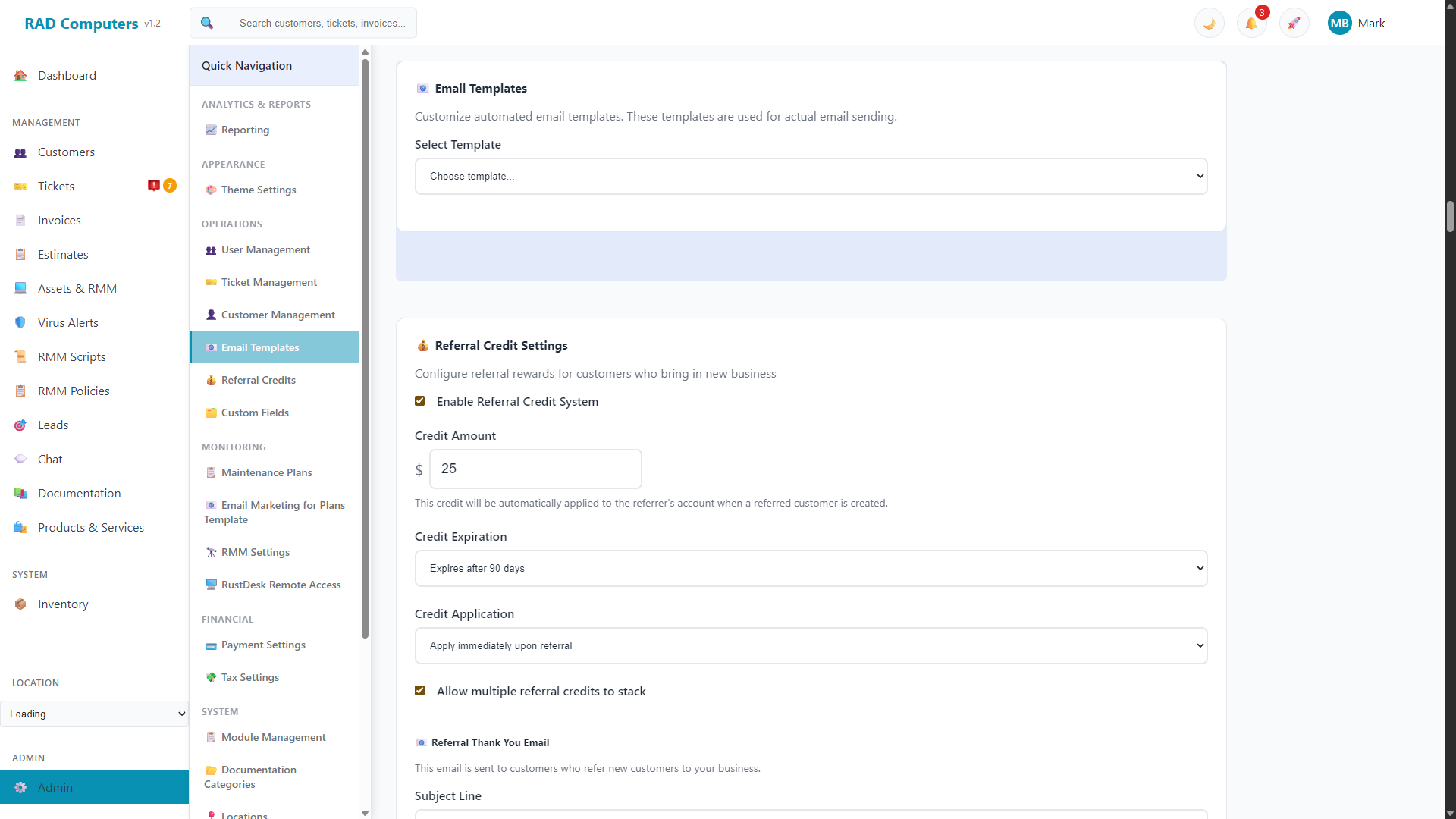
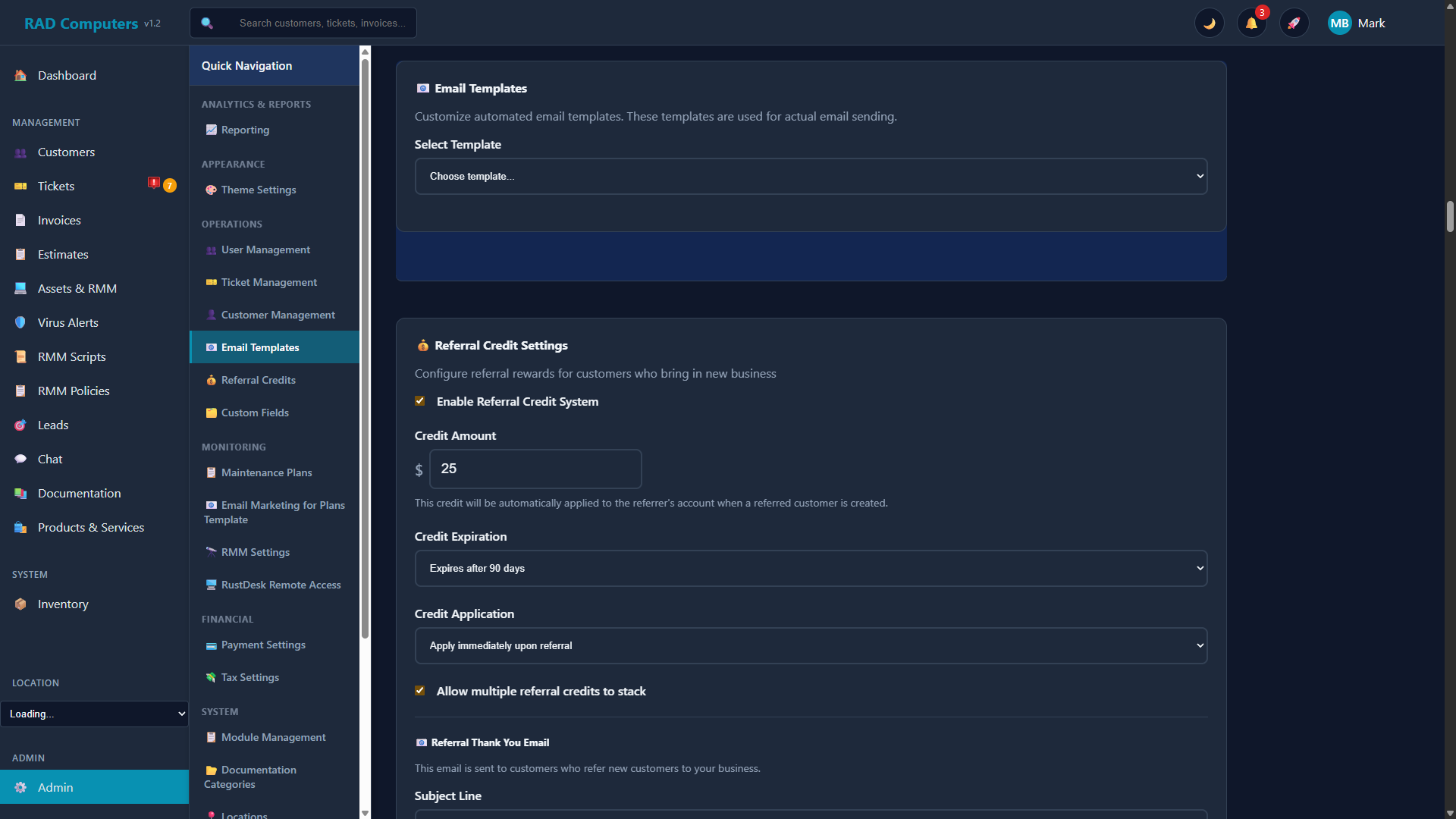
The Email Templates editor allows you to customize all automated communications
Overview
RAD Repairs sends automated emails at key points in your workflow to keep customers informed about their repairs, invoices, and estimates. The Email Templates section lets you customize these messages with your own text, branding, and tone.
With email templates, you can:
- Personalize communications - Add your shop's personality to automated messages
- Include dynamic data - Use variables to insert customer names, ticket numbers, and more
- Support both formats - Create HTML and plain text versions of each template
- Preview before saving - See exactly how emails will look, in HTML or plain text
- Reset to defaults - Restore a template's original content at any time
How emails are sent: RAD Repairs delivers all automated email through Mailgun. If emails are not sending, the Mailgun configuration on your server is the first thing to check.
Available Template Types
RAD Repairs includes templates for the major customer communication events:
Ticket Templates
| Template | Trigger | Description |
|---|---|---|
| Ticket Created | New ticket is created | Confirms receipt of device and provides ticket reference number |
| Ticket Update | An update is sent on a ticket | Notifies customer of progress with the update content and current status |
| Ticket Completed | Ticket resolved | Informs customer their device is ready, including the resolution |
| Worksheet Status | Daily (when enabled in Ticket Management) | Daily progress email showing how many worksheet items remain on the repair |
| Ticket Follow-Up | A set number of days after a ticket is resolved (when enabled in Ticket Management) | Thank-you / "how did we do?" email with a secure portal link where the customer can view history, pay invoices, and sign up for a maintenance plan. Supports {{portal_link}}, {{ticket_number}}, and {{ticket_subject}} |
Invoice and Estimate Templates
| Template | Trigger | Description |
|---|---|---|
| Invoice Sent | Invoice emailed to customer | Delivers the invoice with a payment link |
| Recurring Payment Overdue | Recurring invoice payment is overdue | Reminds the customer before service is downgraded |
| Estimate Sent | Estimate emailed to customer | Delivers the repair estimate with an approval link |
Other Templates
| Template | Trigger | Description |
|---|---|---|
| Lead Reply | Replying to a lead | Response email to incoming leads |
| Warranty Expiring | Warranty reminder | Lets the customer know a warranty is about to expire |
| Maintenance Recommended | Maintenance reminder | Suggests scheduled maintenance to the customer |
| Referral Thank You | Customer earns a referral credit | Thanks the referrer (edited in the Referral Credits section) |
Template Editor
The template editor lets you customize emails without knowing any HTML - the email body is edited visually, just like a document. Click into the text and type; what you see is what the customer gets.
Editor Components
- Subject Line - The email subject, supports
{{variable_name}}placeholders - Email Body (visual editor) - The email is shown as it will look. A toolbar provides Bold, Italic, Underline, headings, bulleted/numbered lists, and links
- Insert Variable dropdown - Lists the template's placeholders by friendly name (e.g. "customer name") and inserts them at your cursor - no need to remember the
{{...}}syntax - </> Edit HTML toggle - For advanced users who prefer editing the raw markup; switch back and forth freely, both views stay in sync
- Email Body (Plain Text) - A simple text-only version shown by email apps that can't display the formatted email; write it like a normal message
- Available Variables - Listed under the editor for the selected template
- Preview Panel - Shows the rendered subject and body, with an HTML / Plain Text toggle
Your brand color is applied automatically. Emails built from the standard templates use the accent color from Theme Settings for headers and buttons - both when sent and in the Preview panel. If you've customized a template with your own colors, those are left untouched. Advanced users can also place the accent color deliberately with the {{theme_color}} variable.
Select a Template
Go to Admin Settings > Email Templates and choose the template from the Select Template dropdown.
Edit the Subject Line
Customize the email subject. Use variables like {{ticket_number}} to include dynamic content.
Customize the Body
Click into the email and edit it like a document - use the toolbar for formatting and the Insert Variable dropdown for placeholders. Then update the plain text version for compatibility. The variables available for this template are listed below the editor.
Preview and Save
Click Preview to see the rendered email, then click Save Template to apply your changes.
Available Variables
Variables are placeholders written as {{variable_name}} that get replaced with actual data when the email is sent. Each template supports its own set of variables - the exact list is shown under the editor when you select a template. Common variables include:
General Variables
| Variable | Description | Example Output |
|---|---|---|
{{customer_name}} |
Customer's name | John Smith |
{{company_name}} |
Your business name | RAD Computer Repairs |
{{location_name}} |
The location associated with the record | Main Office |
{{technician_name}} |
The assigned technician | Sarah Lee |
{{theme_color}} |
Your brand accent color from Theme Settings (for advanced use in custom styling; standard templates pick it up automatically) | #dc2626 |
Ticket Variables
| Variable | Description | Example Output |
|---|---|---|
{{ticket_number}} |
Unique ticket identifier | TKT-00142 |
{{subject}} |
The ticket subject | Laptop won't boot |
{{status}} |
Current ticket status | In Progress |
{{description}} |
Issue description | Computer running slow, possible malware |
{{update_content}} |
The content of the ticket update being sent | We've finished diagnostics... |
{{resolution}} |
How the ticket was resolved (Ticket Completed) | Replaced hard drive and restored data |
{{priority}} |
Ticket priority | 2 - Normal |
Invoice and Estimate Variables
| Variable | Description | Example Output |
|---|---|---|
{{invoice_number}} |
Invoice identifier | INV-00089 |
{{estimate_number}} |
Estimate identifier | EST-00034 |
{{total_amount}} |
Total amount | $125.00 |
{{due_date}} |
Payment due date | January 31, 2026 |
{{valid_until}} |
Estimate expiration date | February 15, 2026 |
{{payment_link}} |
Online payment URL | https://yourshop.example.com/pay/... |
{{approval_link}} |
URL for the customer to approve an estimate | https://yourshop.example.com/approve/... |
Lead Variables
| Variable | Description | Example Output |
|---|---|---|
{{lead_name}} |
The lead's name | Jane Doe |
{{reply_content}} |
Your reply message | Thanks for reaching out... |
{{original_subject}} |
The subject of the lead's original message | Cracked screen repair quote |
Worksheet Status Variables
The Worksheet Status template additionally supports device and progress details such as {{device_type}}, {{device_make}}, {{device_model}}, {{issue_type}}, {{items_completed}}, {{customer_portal_url}}, {{company_phone}}, and {{company_email}}.
HTML vs Plain Text
Each email template supports both HTML and plain text versions. Understanding when each is used helps ensure your emails look great for all recipients.
HTML Version
- Displays formatted text with fonts, colors, and styling
- Supports images, logos, and your brand colors
- Can include buttons and clickable links
- Used by most modern email clients (Gmail, Outlook, Apple Mail)
Plain Text Version
- No formatting - just simple text
- Guaranteed to display correctly on all devices
- Required fallback for email clients with HTML disabled
- Preferred by some users for security or accessibility reasons
Best Practice: Always maintain both versions of your templates. The system will automatically send the HTML version to clients that support it and fall back to plain text for others.
SMS Variants
Every email template has an SMS Variant box in the editor — a short text-message version of the same notification, using the same {{variables}} as the email.
- Per-template toggle - the checkbox on the SMS Variant box controls whether the text version is actually sent. Toggling it off silences that SMS without touching the email.
- When it sends - SMS variants go out through the same automated events as their email (ticket created/updated, invoice sent, payment receipt, follow-up...), for customers with SMS enabled, when texting is configured (built-in platform number or your own Twilio account in the App Center).
- Keep it short - messages over 160 characters may be split into multiple texts. A character counter under the box helps.
Tip: the built-in SMS notifications (ticket created, ticket update, invoice sent, payment receipt, worksheet status) are edited here as the SMS Variant of their matching email template. The optional Ticket Follow-Up SMS is seeded disabled — enable its toggle to add a text to the resolved-ticket follow-up.
Previewing Emails
Before saving a template, use the preview feature to make sure your email looks exactly as intended.
Open the Preview
Click the Preview button under the editor. The preview panel shows the rendered subject line and body with sample data filled in for the variables.
Toggle HTML/Text
Use the HTML and Plain Text buttons at the top of the preview to see both versions.
Save When Happy
Click Save Template to apply your changes. Emails sent from that point on use the updated template.
Note: The preview uses sample data for all variables. Actual customer data is inserted when emails are sent through normal workflows.
Resetting to Defaults
If you want to start over or undo extensive changes, you can reset a template to its default content:
- Select the template you want to reset
- Click the Reset button next to Save and Preview
- Confirm the reset when prompted
Warning: Resetting a template replaces your customizations with the factory default content and cannot be undone.
Frequently Asked Questions
How are the emails actually delivered?
All automated email is sent through Mailgun. If templates look right but emails never arrive, the Mailgun configuration on your server needs to be checked.
Why aren't my emails arriving?
Ask the recipient to check their spam/junk folder first. If emails still are not received, verify that Mailgun is properly configured for your server.
Can I use different templates for different locations?
Email templates are shared across all locations. Location-specific information can be included with the {{location_name}} variable.
What happens if I use a variable that doesn't have data?
Variables without data are replaced with an empty string, so the email still sends - the missing value is simply blank.
Where do I edit the Referral Thank You email?
The Referral Thank You email has its own editor inside Admin Settings > Referral Credits, alongside the rest of the referral program settings.
What about SMS messages?
Text-message notifications (ticket created, ticket update, worksheet status) are sent through Twilio, which is configured in the App Center. They use their own SMS templates, separate from these email templates.
Are emails sent immediately when events occur?
Yes, transactional emails such as ticket updates and invoices are sent when the triggering action happens. Daily emails, like the Worksheet Status email, go out at each location's configured Notification Send Time.
Need Help with Email Templates?
If you need assistance customizing your email templates or have questions about variables and formatting, our support team is ready to help.
Contact Support