Integrations
Connect RAD Repairs with third-party services to streamline your workflow, eliminate double-entry, and keep your systems synchronized.
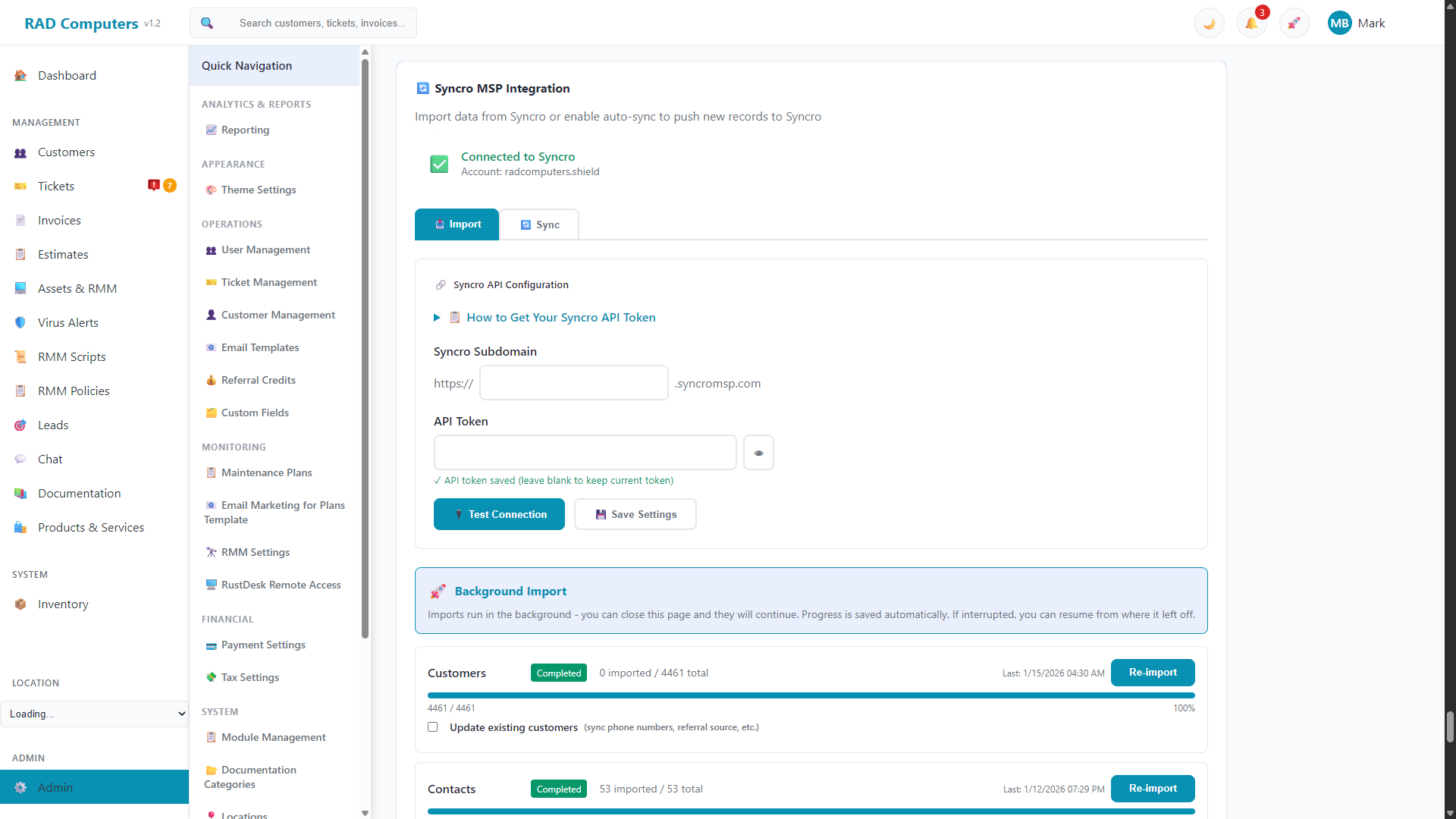
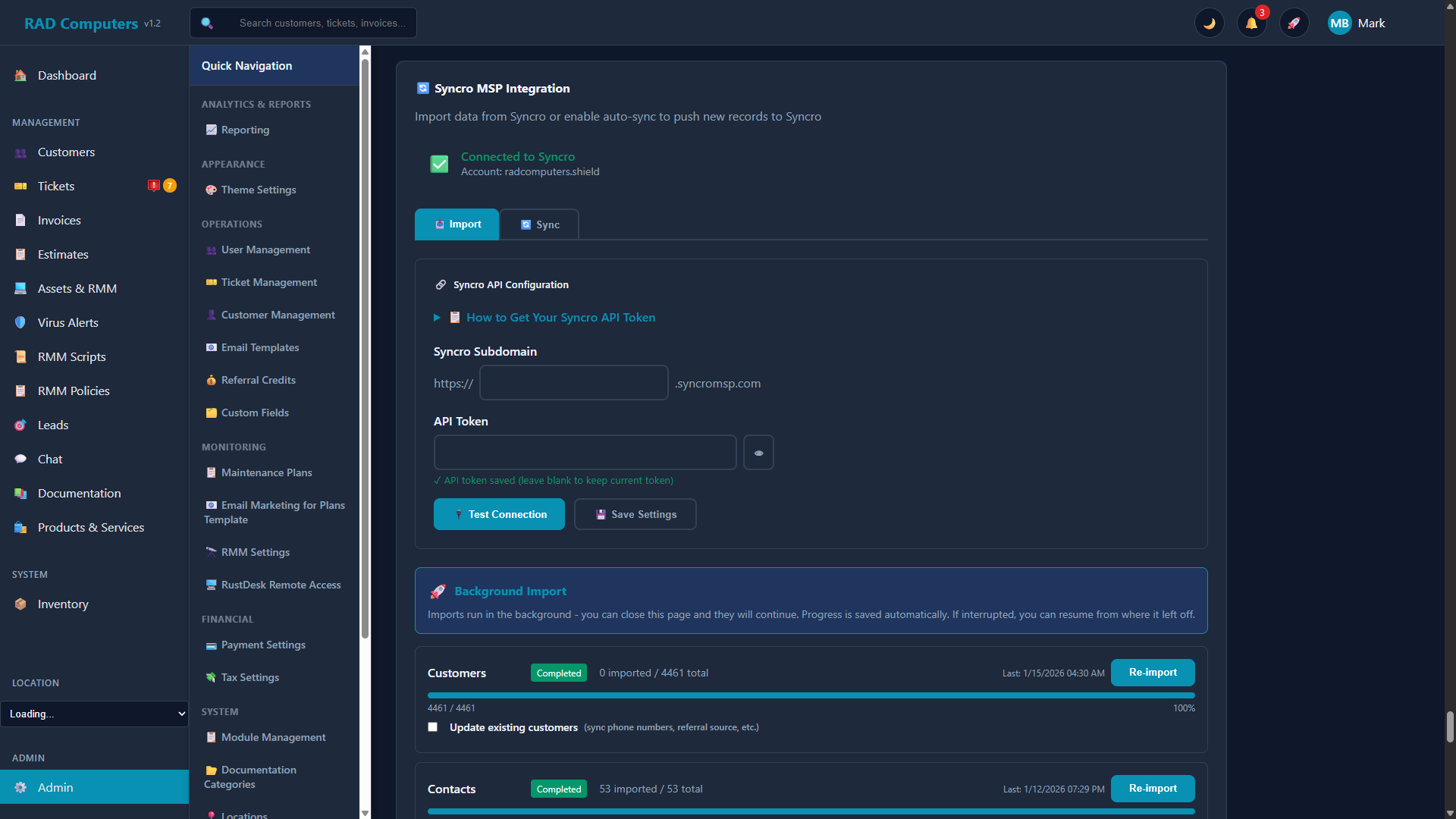
The Syncro MSP integration, showing the connection status, API configuration, and background import progress
Overview
The Syncro MSP integration works in both directions and helps you:
- Migrate from Syncro - Import your customers, contacts, tickets, products, estimates, invoices, recurring invoices, payments, and wiki pages into RAD Repairs
- Eliminate Double-Entry - Automatically push new customers, tickets, estimates, and invoices created in RAD Repairs to Syncro
- Run in the Background - Imports continue even if you close the page, with progress saved automatically
- Track Everything - Sync statistics and a recent-activity log show exactly what has synced
Where to find it: Open the App Center from the main sidebar and click Syncro MSP. The page has three tabs - Configuration, Import, and Sync - plus a location selector, so multi-location businesses can configure Syncro per location. Migrating from RepairDesk instead? The App Center also has a RepairDesk import app.
Syncro MSP Integration
What is Syncro MSP?
Syncro is a popular Professional Services Automation (PSA) and Remote Monitoring & Management (RMM) platform used by IT service providers and managed service providers (MSPs). It provides tools for ticketing, invoicing, remote access, and more.
The Syncro MSP integration lets you import your existing Syncro data into RAD Repairs, and optionally push new records the other way. When you create customers, tickets, estimates, or invoices in RAD Repairs, they can be automatically pushed to Syncro, eliminating double-entry and keeping both systems in sync.
Setting Up the Connection
Follow these steps to connect RAD Repairs to your Syncro MSP account:
Generate a Syncro API Token
Log in to your Syncro account, click your profile icon in the top-right corner, then select Settings > API Tokens. Click New Token > Custom Permissions and give it a descriptive name like "RAD Repairs Integration". (These same instructions are available in the collapsible How to Get Your Syncro API Token guide on the Configuration tab.)
Set Token Permissions
Configure the token with the following permissions:
- Customers: All
- Contacts: All
- Tickets: All
- Products: All
- Estimates: All
- Invoices: All
- Payments: List/Search, Show/Get
- Recurring Invoices: List/Search, Show/Get
- Documentation: Allow Usage
Copy the Token
Click Create API Token and immediately copy the generated token. You will not be able to see it again after leaving the page.
Configure in RAD Repairs
Go to App Center > Syncro MSP. If you have multiple locations, pick the location this connection applies to. On the Configuration tab, enter your Syncro subdomain (e.g., if your URL is yourcompany.syncromsp.com, enter yourcompany). Paste your API token and click Save Settings.
Test the Connection
Click the Test Connection button to verify your credentials are working correctly. The status banner at the top of the page changes to Connected once the integration is ready to use.
Importing Your Syncro Data
The Import tab migrates your existing Syncro data into RAD Repairs. Imports run as background jobs - you can close the page and they will keep running, and each job shows a live progress bar with a Pause, Resume, or Cancel option.
You can import the following, in dependency order:
- Customers - with an optional "update existing" checkbox to refresh phone numbers, referral sources, and other details on re-import
- Contacts - requires Customers first
- Tickets - requires Customers first; optional "update existing" to refresh technician assignments
- Products - optional "update existing" to refresh item type and stock settings
- Estimates and Invoices - require Customers and Products first
- Recurring Invoices - requires Customers and Products first
- Payments - requires Invoices first
- Wiki Pages - imported straight into the Documentation Center
Tip: Import buttons for dependent data stay disabled until their prerequisites finish, so you cannot import tickets before customers. Re-running an import will not create duplicates - records are matched to their Syncro IDs.
API Key Configuration
Your Syncro API token is stored securely in RAD Repairs. For security reasons:
- The token is encrypted in the database
- After initial entry, the token is displayed as masked (e.g.,
xxxx...xxxx) - All API communications use HTTPS encryption
- Sync operations are logged for audit purposes
Security Note: Treat your Syncro API token like a password. Never share it publicly or include it in code repositories. If you suspect your token has been compromised, generate a new one in Syncro immediately.
Sync Options
The Sync tab controls pushing new RAD Repairs records to Syncro. Turn on Enable Syncro Integration, then choose which entity types auto-sync. Each type can be enabled or disabled independently:
| Entity Type | Description | Requirements |
|---|---|---|
| Customers | Sync customer contact information, business details, and addresses | Customer must have name and email |
| Tickets | Sync service tickets with subject, description, and priority | Associated customer must be synced first |
| Estimates | Sync quotes with line items and pricing | Associated customer must be synced first |
| Invoices | Sync invoices with line items and totals | Associated customer must be synced first |
Auto-Sync vs Manual Sync
Automatic Synchronization
When auto-sync is enabled for an entity type, records are automatically pushed to Syncro immediately upon creation in RAD Repairs. This is the recommended setting for most users as it ensures data is always up-to-date in both systems.
- Records sync in real-time when created
- No manual intervention required
- Best for ongoing daily operations
Manual Synchronization
If auto-sync is disabled, you can still sync records manually from the Sync tab:
- Sync All Unsynced - Syncs up to 100 unsynced records of each entity type (customers, tickets, estimates, invoices) at once
- Sync Statistics - Shows how many records of each type have synced; use Refresh to update the counts
- Recent Sync Activity - A log of recent sync operations and any errors
Manual sync is useful for:
- Catching up after the integration was temporarily disabled
- Syncing records created before the integration was enabled
- Re-syncing after resolving API issues (failed syncs are also queued for automatic retry when possible)
Troubleshooting Sync Issues
Connection Test Failed
"Syncro integration is not configured"
Ensure both the subdomain and API token are entered in the settings. Click Save Settings before testing the connection.
"Failed to connect to Syncro. Please check your credentials."
Verify your subdomain is correct (just the subdomain, not the full URL). Ensure the API token is valid and has not been revoked. Check that the token has all required permissions.
"401 Unauthorized"
The API token may have expired or been deleted. Generate a new token in Syncro and update it in RAD Repairs settings.
Sync Failures
"Customer not synced to Syncro"
The customer must be synced before their tickets, estimates, or invoices can sync. Use the "Sync All" feature or manually sync the customer first.
"Failed to sync customer first"
Check if the customer has all required fields (name, email). Review the sync log for specific error messages that may indicate missing or invalid data.
Rate Limiting Errors
Syncro may limit API requests if too many are sent quickly. The bulk sync is limited to 100 records per entity type to avoid this. Wait a few minutes and try again if you hit rate limits.
Missing Data in Syncro
Customer details not appearing
Verify the customer has all required fields in RAD Repairs. If the customer was created before the integration was enabled, use the "Sync All" feature to sync existing records.
Ticket not linked to customer
The associated customer must exist in Syncro first. If the customer sync failed, the ticket will also fail. Check the sync log for customer-related errors.
Current Limitations
- No Deletion Sync - Deleting a record in RAD Repairs does not delete it in Syncro (and vice versa)
- Auto-Sync is Creation-Only - Auto-sync pushes records to Syncro when they are created; later edits do not automatically sync. (Imports do offer "update existing" options for customers, tickets, and products.)
- Bulk Sync Limit - The "Sync All Unsynced" feature syncs up to 100 records per entity type at a time
Frequently Asked Questions
Can I use other integrations at the same time?
Yes. The App Center includes other integrations - such as Stripe, Twilio SMS, RustDesk, ScreenConnect, Comet Backup, and a RepairDesk import - and each one operates independently of the Syncro integration.
Will syncing to Syncro create duplicate records?
No. RAD Repairs tracks which records have been synced and links them to their Syncro IDs. Records will not be duplicated even if you run the sync multiple times.
Can I sync historical data from before the integration was set up?
Yes. Use the Sync All Unsynced button on the Sync tab to push existing records that were created before the integration was enabled. This will sync up to 100 records of each type at a time.
What happens if Syncro is temporarily unavailable?
If a sync fails due to Syncro being unavailable, the record will be marked as unsynced. You can use the manual sync features to retry syncing once Syncro is back online.
How do I disable the Syncro integration?
Uncheck Enable Syncro Integration on the Sync tab of the Syncro MSP page in the App Center. You can optionally clear the API token if you want to completely disconnect. Existing synced records will remain in Syncro.
Is my API token secure?
Yes. API tokens are encrypted in the database and never displayed in full after initial entry. All API communications use HTTPS encryption. We recommend periodically rotating your API tokens as a security best practice.
Need Help with Integrations?
If you encounter issues setting up or using integrations, our support team is ready to assist. Provide details about any error messages from the sync log for faster troubleshooting.
Contact Support